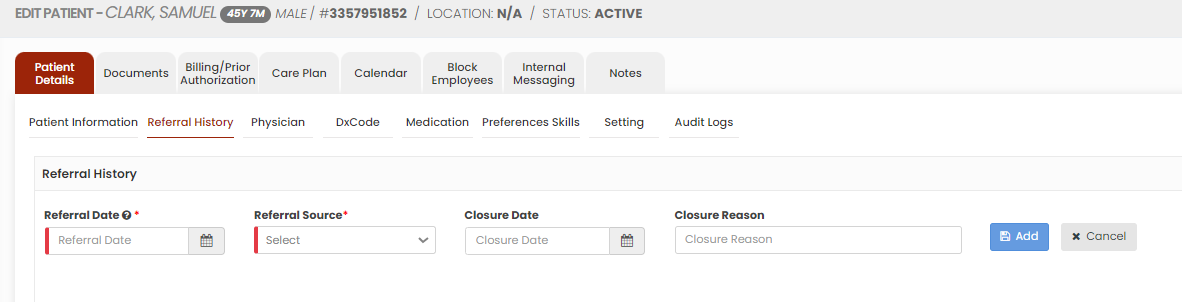
**Client >> List>> Patient Name >> Referral History**
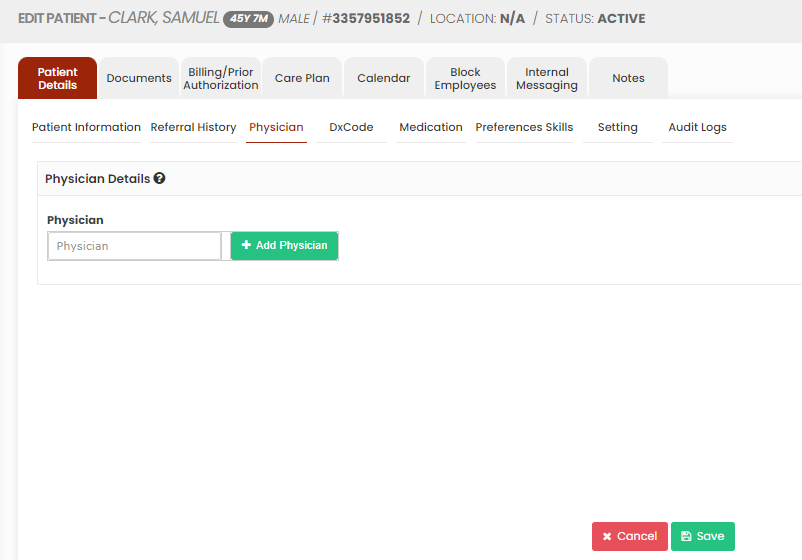
[](https://support.myezcare.com/uploads/images/gallery/2023-10/x9aimage.png) The added Referral History can be deleted by using the delete option under Action. [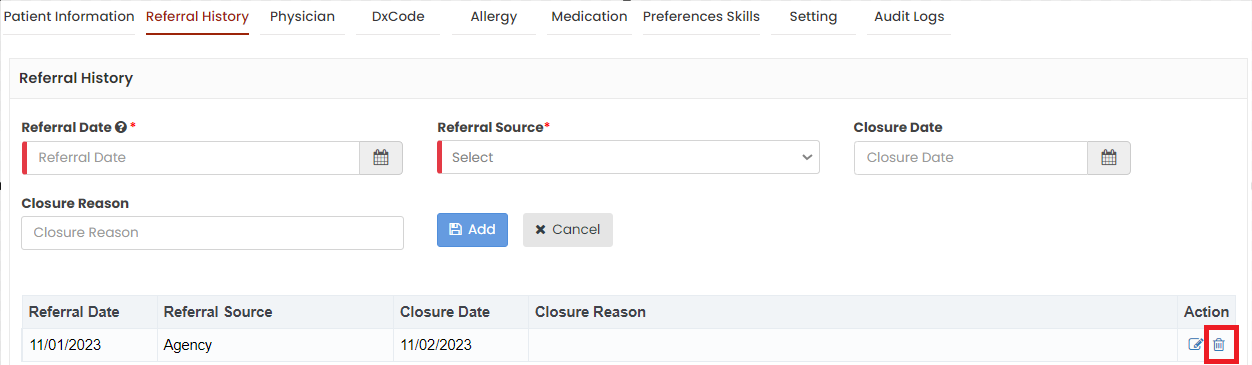](https://support.myezcare.com/uploads/images/gallery/2023-11/zulimage.png) ### Physician The Physician Details of the patient can be added by using the option Physician in Patient details. Click Add Physician option to update new Physician information.**Client >> List>> Patient Name >> Physician**
[](https://support.myezcare.com/uploads/images/gallery/2023-10/GpVimage.png) Now, enter the required details of the Physician and Click Save option. To update existing physician, search the physician name and Click save. [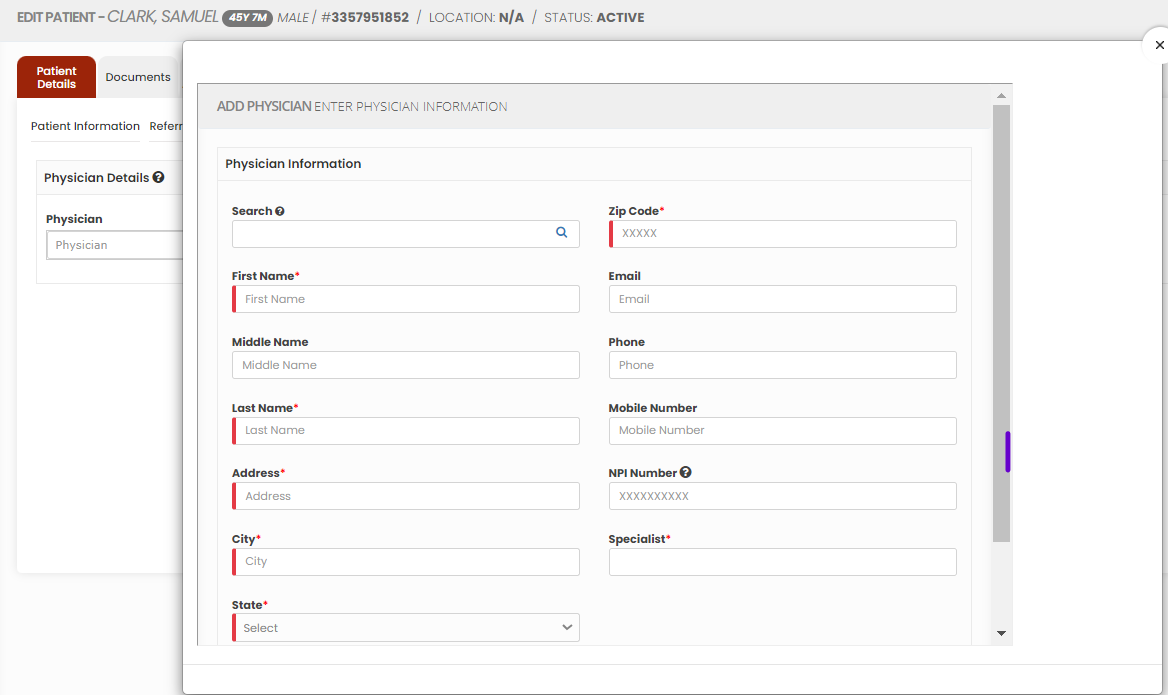](https://support.myezcare.com/uploads/images/gallery/2023-10/0r4image.png) The added physician can also be deleted by using the option x under Action. [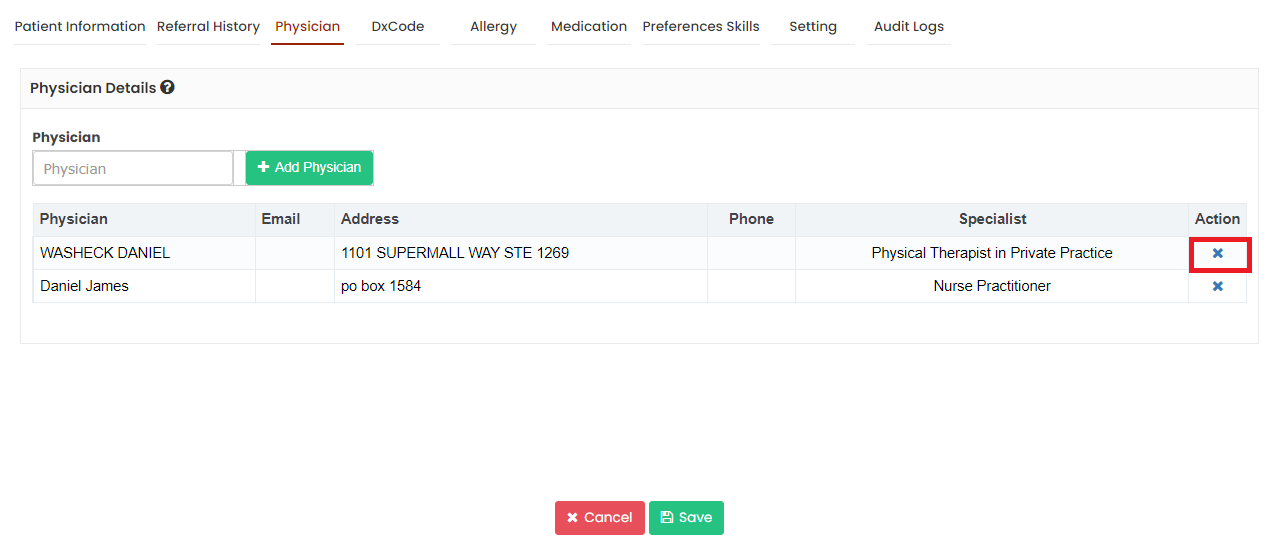](https://support.myezcare.com/uploads/images/gallery/2023-11/Ekhimage.png) ### Dx Code The diagnosis code, often referred to as an ICD code are essential to medical billing and insurance claims. Search the required Dx code and Click Add option.**Client >> List>> Patient Name >> Dx Code**
[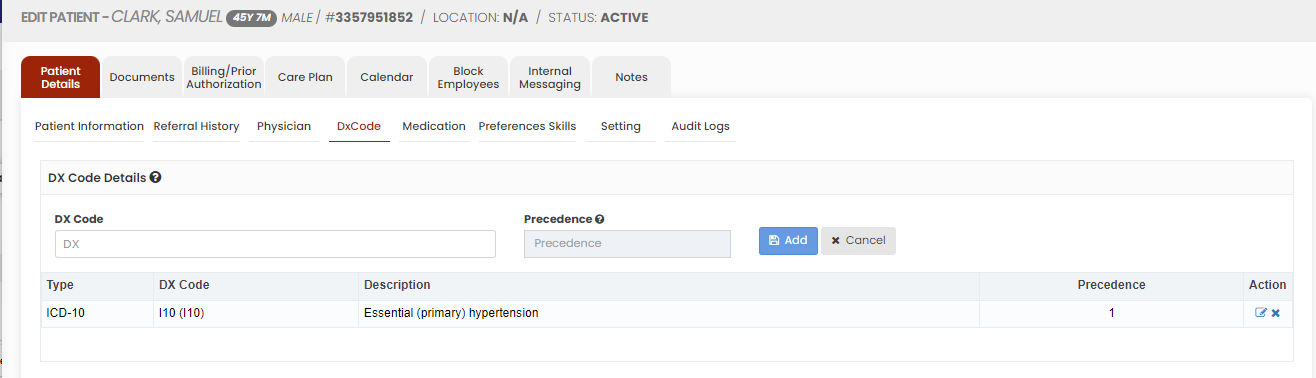](https://support.myezcare.com/uploads/images/gallery/2023-10/Phqimage.png) The added Dx code can also be deleted by using the option x under Action. [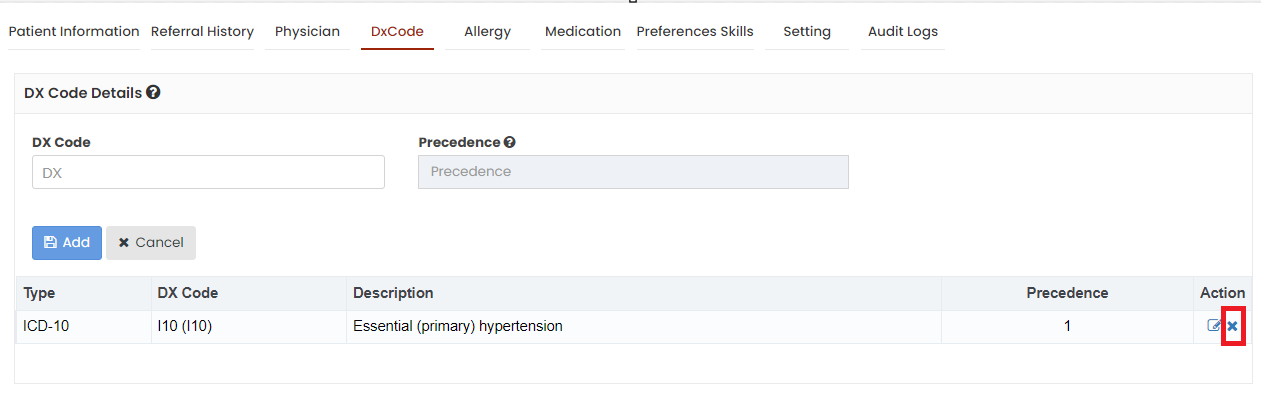](https://support.myezcare.com/uploads/images/gallery/2023-11/3y5image.png)