**Employee Tab >> List**
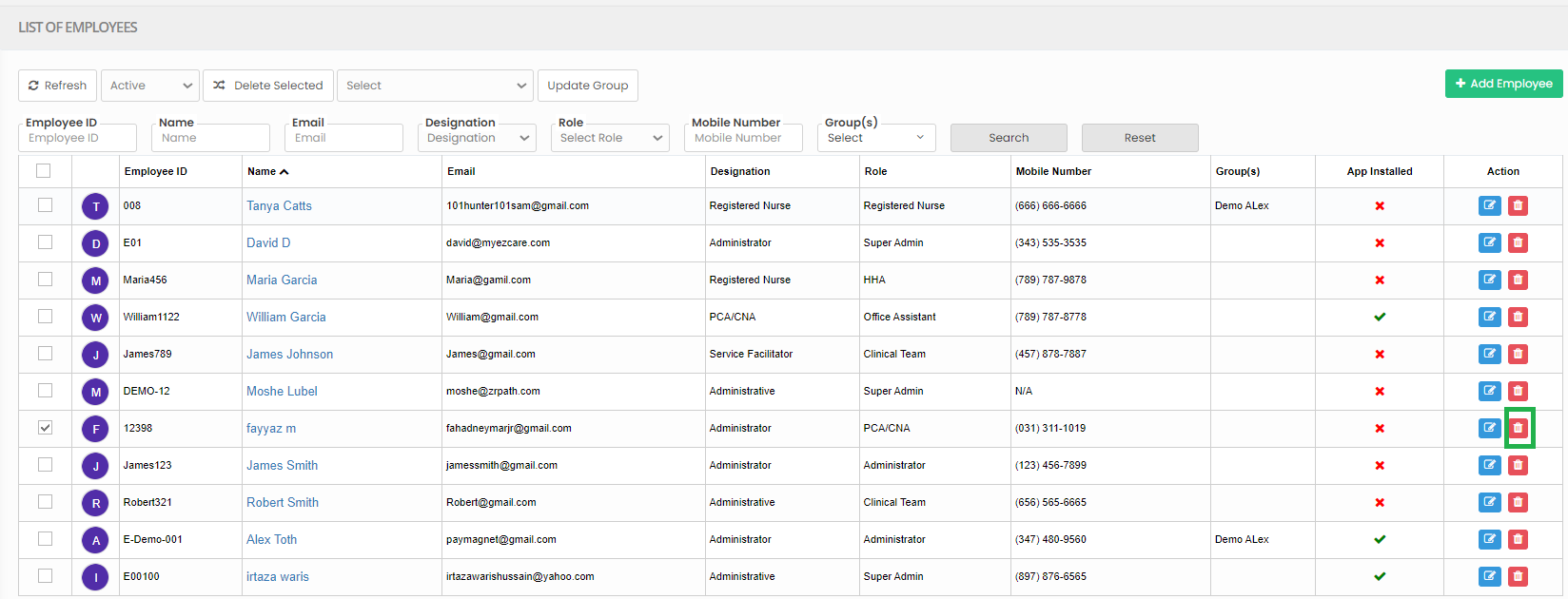
[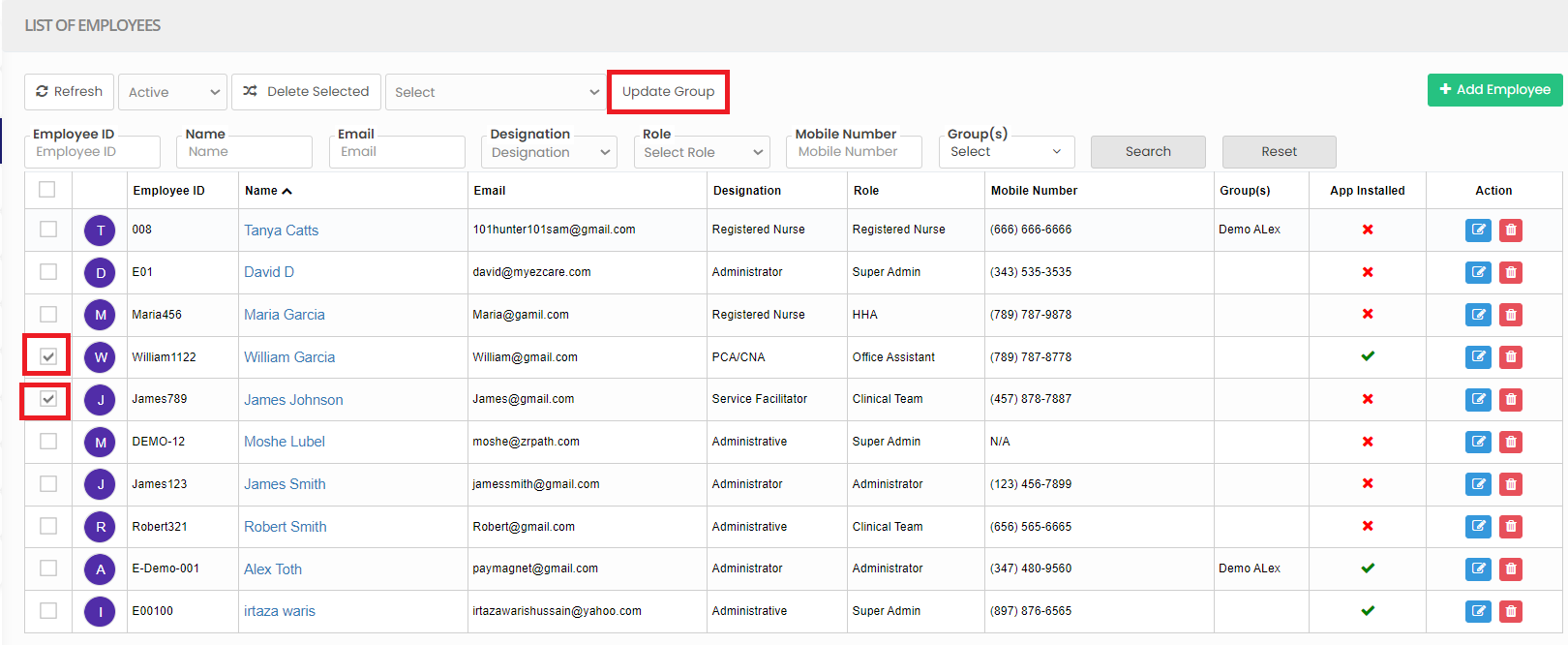](https://support.myezcare.com/uploads/images/gallery/2023-10/1Itimage.png) The following screen appears, select the Group from list and click Save option. [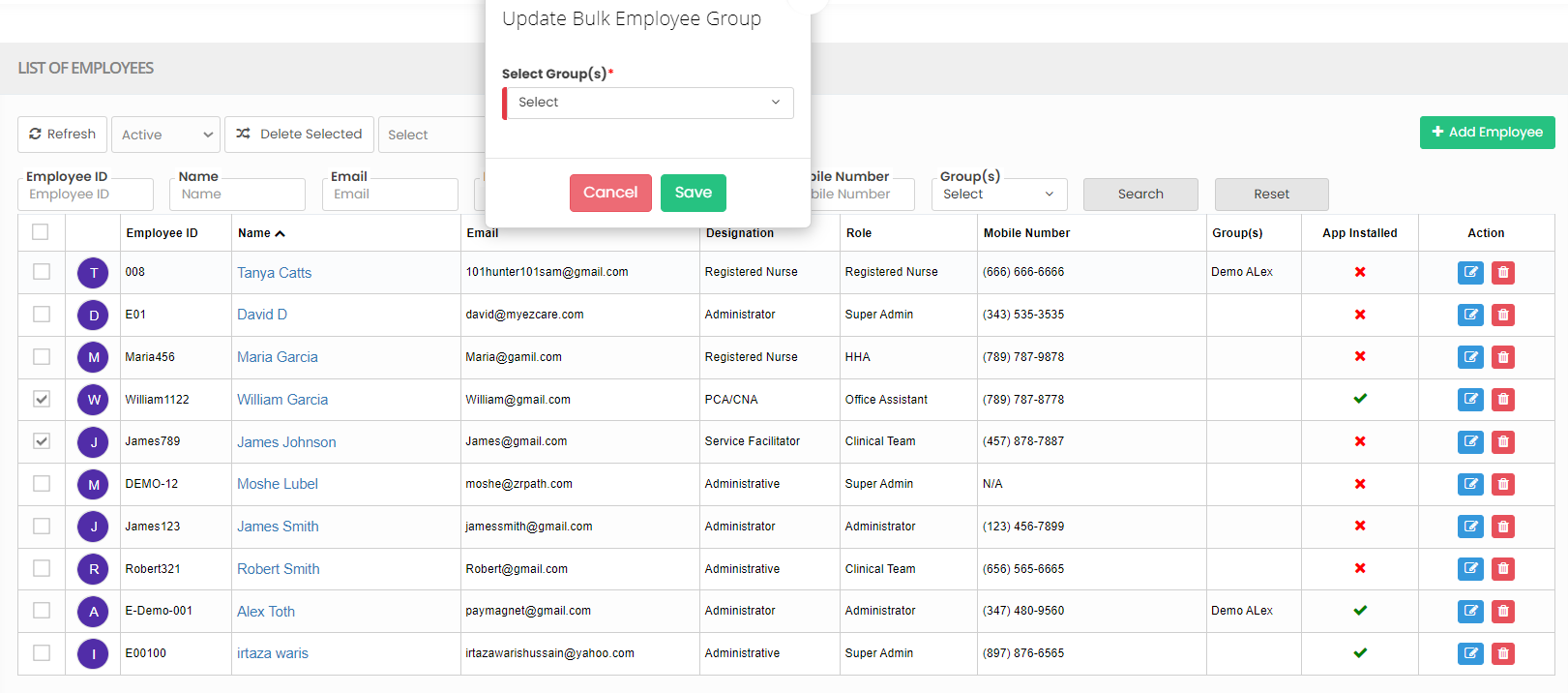](https://support.myezcare.com/uploads/images/gallery/2023-10/oUwimage.png) ### Delete Employee The Employee can be deleted from the system by using the option Delete in Employee List. Select the Employee name by using the check box and click delete option.**Employee Tab >> List**
[](https://support.myezcare.com/uploads/images/gallery/2023-10/rTyimage.png) ### Activate Deleted Employee Select Deleted from the dropdown box. The Deleted employee can also be activated in the system by using the option Active. [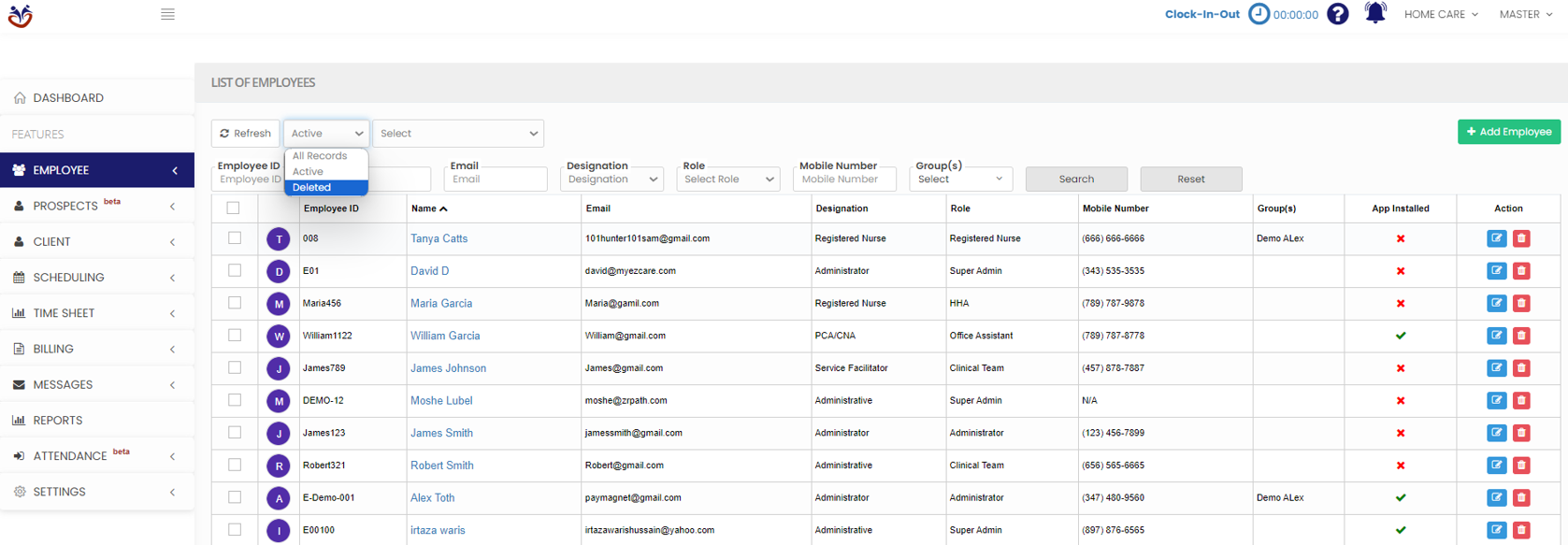](https://support.myezcare.com/uploads/images/gallery/2023-10/kRHimage.png) Click the check box for the employee to be activated and click Active option. Now, the deleted employee is successfully restored. [](https://support.myezcare.com/uploads/images/gallery/2023-10/EpOimage.png)