Note: All Fields marked with \* are mandatory and must be filled out, otherwise the system will generate an error indicating that the required information is missing.
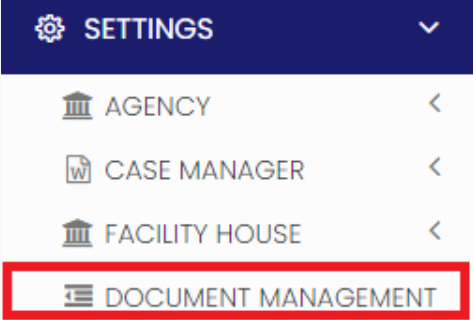
### Adding New Folder To navigate through the process of adding Document Management, follow these steps:**Settings >> Document Management**
[](https://support.myezcare.com/uploads/images/gallery/2023-10/aRZimage.png) For Adding new Folder, select the User type Referral/ Employee and update the required information in Edit Document management screen and click the option Show To All - Yes/No. When the user select the option Yes, then the Folder will be added to all the Client / Employee in the system. If the user select No option, then the Folder will be added only to the particular Client / Employee selected under the Assignee field. [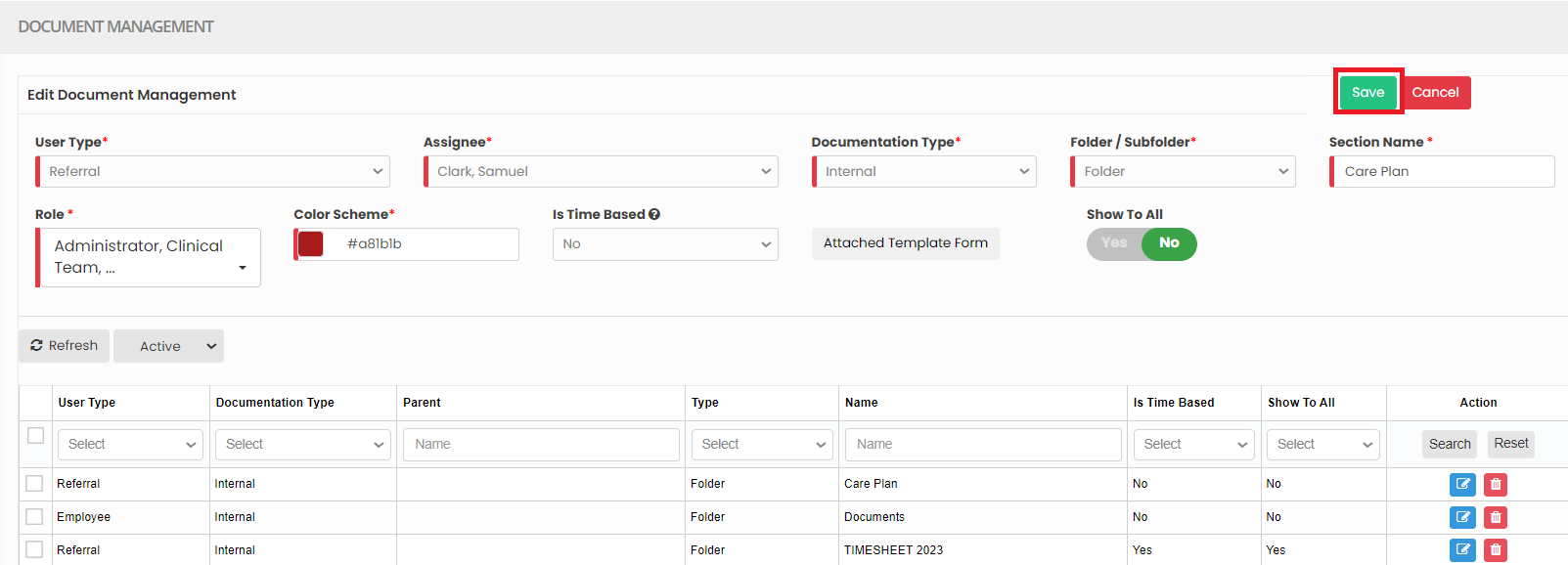](https://support.myezcare.com/uploads/images/gallery/2023-10/RBpimage.png) ### Editing Folder**Settings >> Document Management**
Select the Folder from List and click Edit option on the right side of the screen. [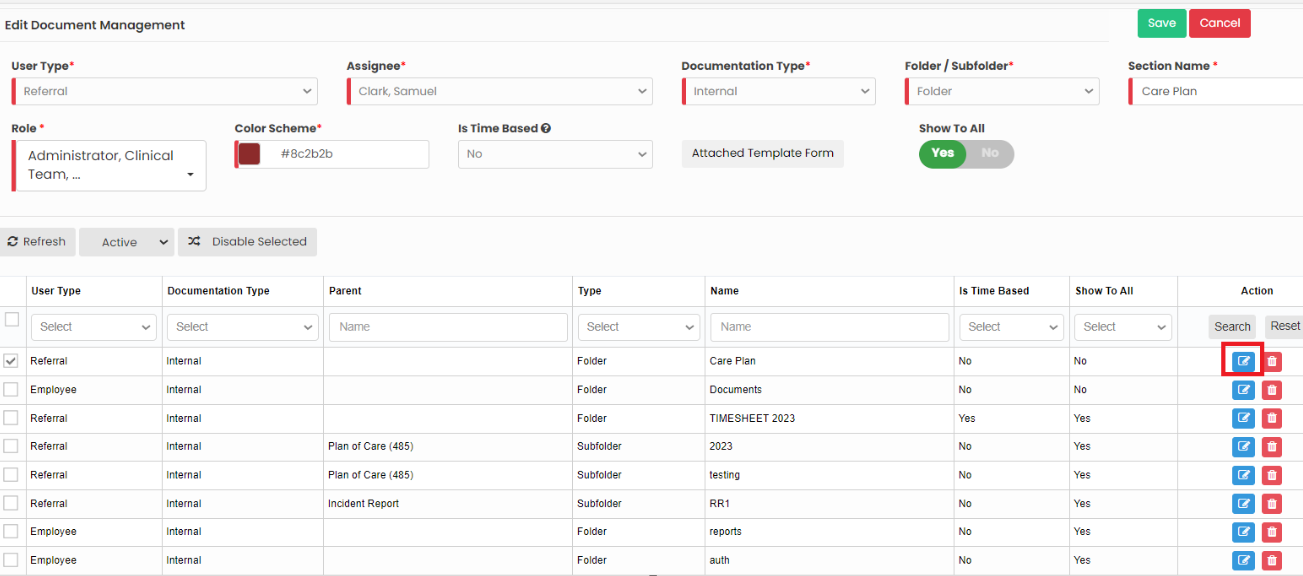](https://support.myezcare.com/uploads/images/gallery/2023-10/bMsimage.png) Edit the required information and click Save option. [](https://support.myezcare.com/uploads/images/gallery/2023-10/heLimage.png) ### Adding New Sub-Folder To navigate through the process of adding Document Management, follow these steps:**Settings >> Document Management**
[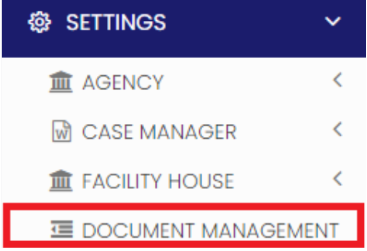](https://support.myezcare.com/uploads/images/gallery/2023-10/IUWimage.png) For Adding new Sub-Folder, select the user type Referral/ Employee, select the Folder name in which the sub folder has to be added and update the required information in Edit Document management screen and click the option Show To All - Yes/No. When the user select the option Yes, then the Folder will be added to all the Client / Employee in the system. If the user select No option, then the Folder will be added only to the particular Client / Employee selected under the Assignee field. [](https://support.myezcare.com/uploads/images/gallery/2023-10/astimage.png) ### Editing Sub-Folder**Settings >> Document Management**
Select the Sub-Folder from List and click Edit option on the right side of the screen. [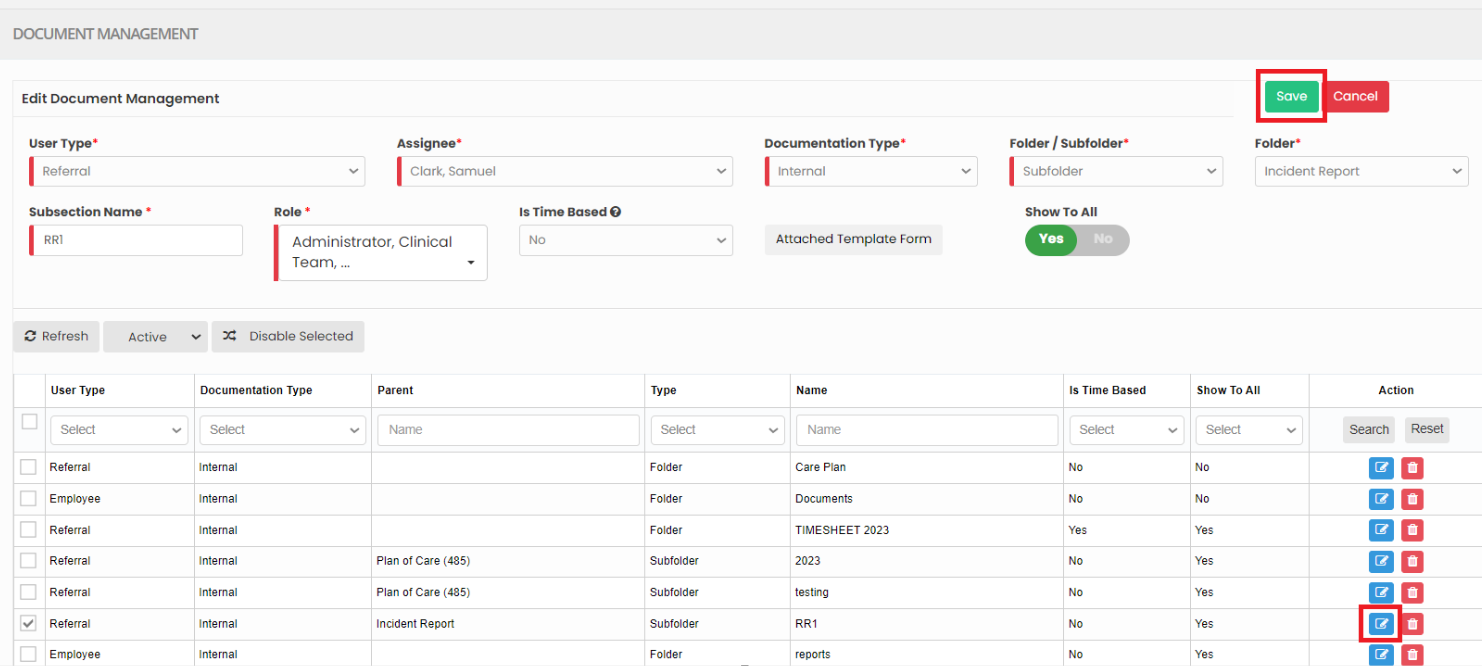](https://support.myezcare.com/uploads/images/gallery/2023-10/qCGimage.png) Edit the required information and click Save option. [](https://support.myezcare.com/uploads/images/gallery/2023-10/aGUimage.png) ### Deleting Folder / Sub-Folder**Settings >> Document Management**
For deleting Folder / Sub-Folder in Document Management screen, select the Folder / Sub-folder from List by using the check box of the Folder / Sub-Folder and click Delete option or Disable Selected option on the screen. [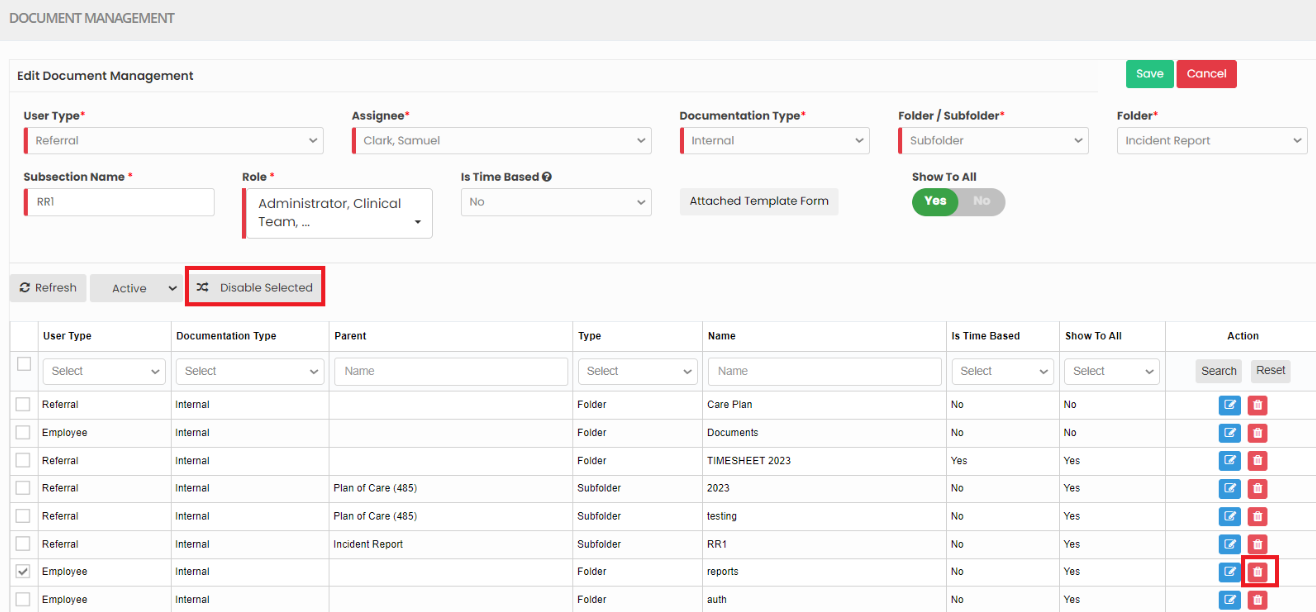](https://support.myezcare.com/uploads/images/gallery/2023-10/ZNyimage.png) ### Restore Deleted Folder / Sub-Folder**Settings >> Document Management**
The Deleted folder can be viewed by using the dropdown option Deleted after the Refresh option in the screen. [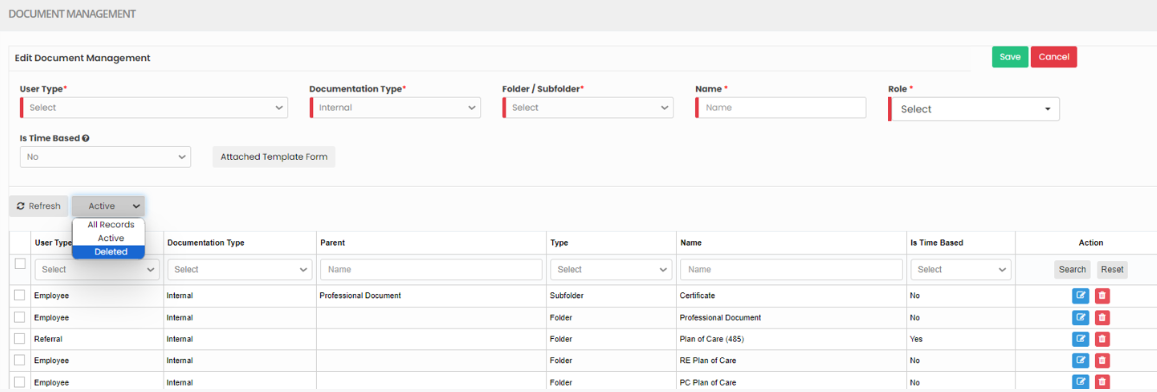](https://support.myezcare.com/uploads/images/gallery/2023-10/Lq3image.png) Now the Deleted folder can also be restored by using the option Active on the right side of the screen. [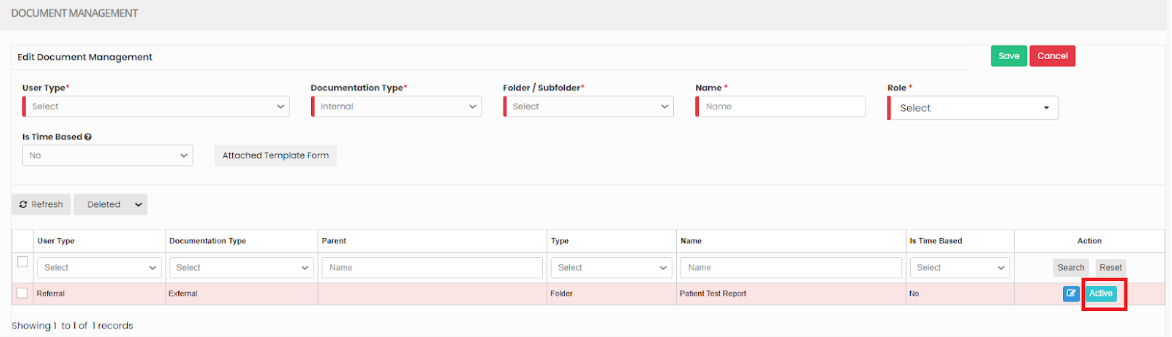](https://support.myezcare.com/uploads/images/gallery/2023-10/FOzimage.png)