# Dashboard Overview

The dashboard screen serves as a comprehensive overview of the organization's activities, providing users with real-time reporting information for efficient tracking and management of day-to-day operations. Here is a breakdown of the key elements displayed on the dashboard.

<p class="callout info">**The Dashboard screen provides a quick glance view of the schedules for the day.**</p>

#### **Features in Dashboard**

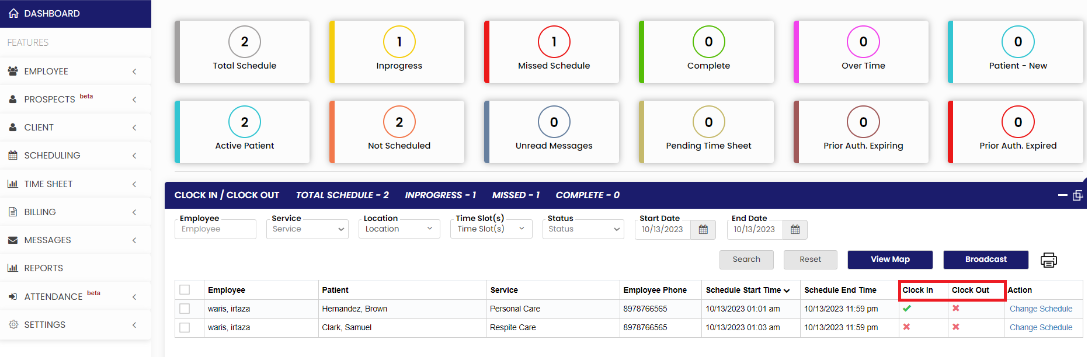
<table border="1" id="bkmrk-employees---clock-in" style="border-collapse: collapse; width: 100%; border-width: 0px;"><colgroup><col style="width: 50%;"></col><col style="width: 50%;"></col></colgroup><tbody><tr><td style="border-width: 0px;">**Employees - Clock-in / Clock out:**

This section provides information about employee attendance, including their clock-in and clock-out times. It helps monitor and manage employee working hours, ensuring proper attendance and time management.

</td><td style="border-width: 0px;">[![image.png](https://support.myezcare.com/uploads/images/gallery/2023-10/scaled-1680-/01Bimage.png)](https://support.myezcare.com/uploads/images/gallery/2023-10/01Bimage.png)

</td></tr></tbody></table>

##### **Missed Schedules**

The user can tract the missed schedules for the day by clicking the option Missed in the Dashboard. The schedules in which the clock-in and clock-out is not done comes under missed schedules.

[![image.png](https://support.myezcare.com/uploads/images/gallery/2023-10/scaled-1680-/xVAimage.png)](https://support.myezcare.com/uploads/images/gallery/2023-10/xVAimage.png)

##### **Complete Schedules**

The user can tract the completed schedules for the day by clicking the option Complete in the Dashboard. The schedules in which the clock-in and clock-out is done comes under Complete Schedules.

[![image.png](https://support.myezcare.com/uploads/images/gallery/2023-10/scaled-1680-/os2image.png)](https://support.myezcare.com/uploads/images/gallery/2023-10/os2image.png)

##### **In-progress Schedules**

The user can tract the In-progress schedules for the day by clicking the option In-progress in the Dashboard. The schedules in which the clock-in is done and clock-out is not yet done comes under In-progress Schedules.

[![image.png](https://support.myezcare.com/uploads/images/gallery/2023-10/scaled-1680-/MkBimage.png)](https://support.myezcare.com/uploads/images/gallery/2023-10/MkBimage.png)


##### **<span style="background-color: rgb(255, 255, 255); color: rgb(0, 0, 0);">Change Schedule</span>**

The option change schedule is used to change the schedule with required Employee name and the available timings. Click change schedule option under Actions.

[![image.png](https://support.myezcare.com/uploads/images/gallery/2023-10/scaled-1680-/45Rimage.png)](https://support.myezcare.com/uploads/images/gallery/2023-10/45Rimage.png)

Now, select the Employee name and enter the available timings and then click Save. The schedule will be changed to the respective Employee with Start time and End time.

[![image.png](https://support.myezcare.com/uploads/images/gallery/2023-10/scaled-1680-/YcIimage.png)](https://support.myezcare.com/uploads/images/gallery/2023-10/YcIimage.png)

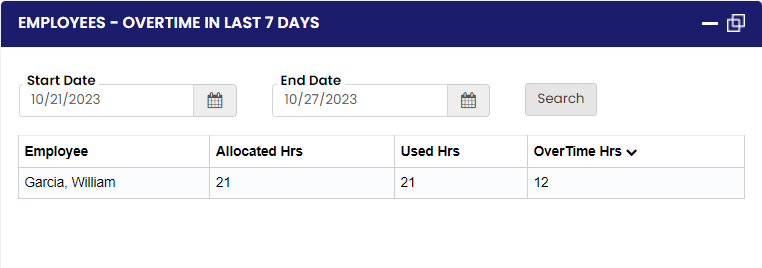
<table border="1" id="bkmrk-employees-overtime%3A-" style="border-collapse: collapse; width: 100.247%; height: 117.325px; border-width: 0px;"><colgroup><col style="width: 49.9853%;"></col><col style="width: 49.9853%;"></col></colgroup><tbody><tr style="height: 117.325px;"><td style="height: 117.325px; border-width: 0px;">**Employees Overtime:**

The employees' overtime section displays the number of employees who have accumulated overtime hours in the last seven days. It helps organizations track and manage overtime effectively, ensuring compliance with labor regulations and managing workload distribution.

</td><td style="height: 117.325px; border-width: 0px;">[![image.png](https://support.myezcare.com/uploads/images/gallery/2023-11/scaled-1680-/o8ximage.png)](https://support.myezcare.com/uploads/images/gallery/2023-11/o8ximage.png)

</td></tr></tbody></table>

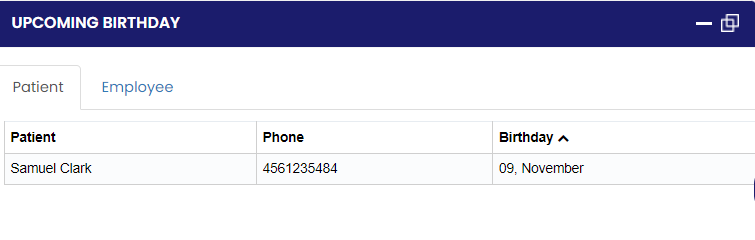
<table border="1" id="bkmrk-upcoming-birthday%3A%C2%A0-" style="border-collapse: collapse; width: 100%; border-width: 0px;"><colgroup><col style="width: 50%;"></col><col style="width: 50%;"></col></colgroup><tbody><tr><td style="border-width: 0px;">**Upcoming Birthday:**

This section presents information about upcoming birthdays of both patients and employees. It serves as a reminder to celebrate and acknowledge birthdays, fostering a positive work environment and patient care experience.

</td><td style="border-width: 0px;">[![image.png](https://support.myezcare.com/uploads/images/gallery/2023-11/scaled-1680-/pm5image.png)](https://support.myezcare.com/uploads/images/gallery/2023-11/pm5image.png)

</td></tr></tbody></table>

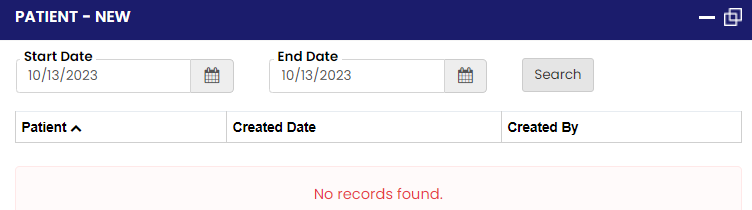
<table border="1" id="bkmrk-patient---new%3A-the-n" style="border-collapse: collapse; width: 100%; border-width: 0px;"><colgroup><col style="width: 50%;"></col><col style="width: 50%;"></col></colgroup><tbody><tr><td style="border-width: 0px;">**Patient - New:**

The new patient section provides information about recently admitted or registered patients. It allows staff to stay informed about new arrivals and helps initiate the necessary procedures and documentation for these patients.

</td><td style="border-width: 0px;">[![image.png](https://support.myezcare.com/uploads/images/gallery/2023-10/scaled-1680-/oKgimage.png)](https://support.myezcare.com/uploads/images/gallery/2023-10/oKgimage.png)

</td></tr></tbody></table>

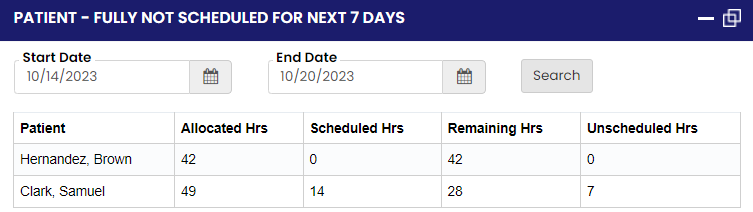
<table border="1" id="bkmrk-patient---fully-not-" style="border-collapse: collapse; width: 100%; border-width: 0px;"><colgroup><col style="width: 50%;"></col><col style="width: 50%;"></col></colgroup><tbody><tr><td style="border-width: 0px;">**Patient - Fully not scheduled:**

This section highlights patients who are not yet fully scheduled for the next seven days. It alerts staff to ensure proper scheduling and avoid any gaps in patient care or appointments.

</td><td style="border-width: 0px;">[![image.png](https://support.myezcare.com/uploads/images/gallery/2023-10/scaled-1680-/MKjimage.png)](https://support.myezcare.com/uploads/images/gallery/2023-10/MKjimage.png)

</td></tr></tbody></table>

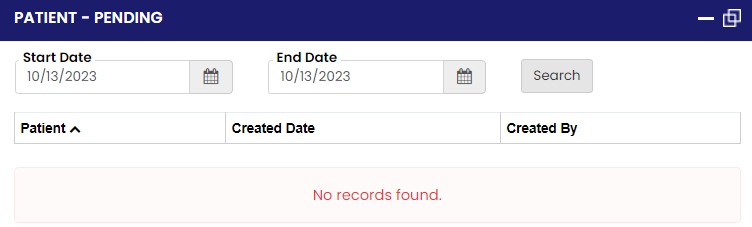
<table border="1" id="bkmrk-patient---pending%3A-t" style="border-collapse: collapse; width: 100%; border-width: 0px;"><colgroup><col style="width: 50%;"></col><col style="width: 50%;"></col></colgroup><tbody><tr><td style="border-width: 0px;">**Patient - Pending:**

The pending patient section displays information about patients whose status is pending. It helps staff stay updated on patients whose cases are awaiting further actions or approvals, ensuring timely follow-up and resolution.

</td><td style="border-width: 0px;">[![image.png](https://support.myezcare.com/uploads/images/gallery/2023-10/scaled-1680-/Oq5image.png)](https://support.myezcare.com/uploads/images/gallery/2023-10/Oq5image.png)

</td></tr></tbody></table>

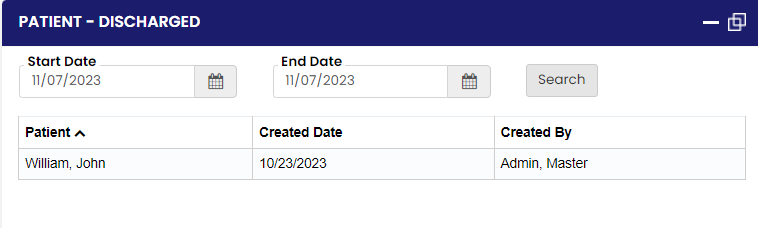
<table border="1" id="bkmrk-patient---discharged" style="border-collapse: collapse; width: 100%; border-width: 0px;"><colgroup><col style="width: 50%;"></col><col style="width: 50%;"></col></colgroup><tbody><tr><td style="border-width: 0px;">**Patient - Discharged:**

This section provides information about patients who have been discharged from the organization's care. It helps track the number of discharged patients and their relevant details for record-keeping and reporting purposes.

</td><td style="border-width: 0px;">[![image.png](https://support.myezcare.com/uploads/images/gallery/2023-11/scaled-1680-/SCgimage.png)](https://support.myezcare.com/uploads/images/gallery/2023-11/SCgimage.png)

</td></tr></tbody></table>

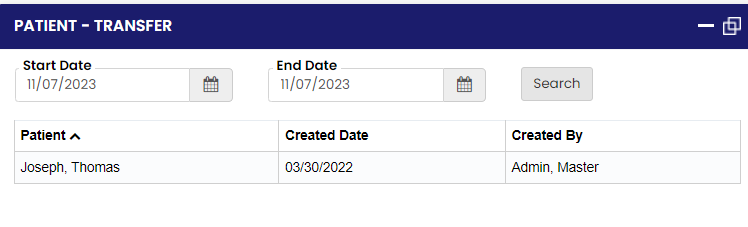
<table border="1" id="bkmrk-patient---transfer%3A-" style="border-collapse: collapse; width: 100%; border-width: 0px;"><colgroup><col style="width: 50%;"></col><col style="width: 50%;"></col></colgroup><tbody><tr><td style="border-width: 0px;">**Patient - Transfer:**

The patient transfer section provides information about patients who have been transferred to another location or facility. It enables seamless coordination between different departments or facilities involved in the patient's care.

</td><td style="border-width: 0px;">[![image.png](https://support.myezcare.com/uploads/images/gallery/2023-11/scaled-1680-/xm5image.png)](https://support.myezcare.com/uploads/images/gallery/2023-11/xm5image.png)

</td></tr></tbody></table>

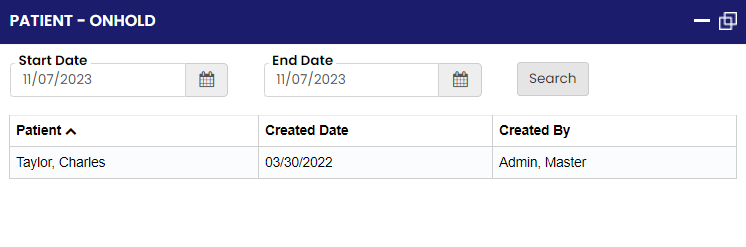
<table border="1" id="bkmrk-patient---on-hold%3A-t" style="border-collapse: collapse; width: 98.1481%; border-width: 0px; height: 148.4px;"><colgroup><col style="width: 50%;"></col><col style="width: 50%;"></col></colgroup><tbody><tr style="height: 148.4px;"><td style="border-width: 0px; height: 148.4px;">**Patient - On Hold:**

This section displays information about patients who are currently on hold, indicating that their cases are temporarily paused or pending certain conditions or decisions. It helps staff track and manage patients whose care plans are on hold.

</td><td style="border-width: 0px; height: 148.4px;">[![image.png](https://support.myezcare.com/uploads/images/gallery/2023-11/scaled-1680-/yFcimage.png)](https://support.myezcare.com/uploads/images/gallery/2023-11/yFcimage.png)

</td></tr></tbody></table>

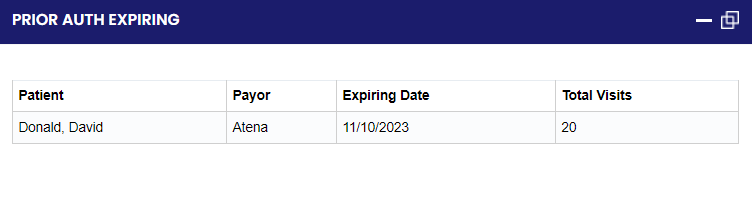
<table border="1" id="bkmrk-prior-auth-expiring%3A" style="border-collapse: collapse; width: 99.3827%; border-width: 0px; height: 146.4px;"><colgroup><col style="width: 50%;"></col><col style="width: 50%;"></col></colgroup><tbody><tr style="height: 146.4px;"><td style="border-width: 0px; height: 146.4px;">**Prior Auth Expiring:**

This section highlights the expiration dates of prior authorizations. It enables staff to proactively manage the authorization process, ensuring that necessary authorizations are renewed or extended in a timely manner to avoid disruption in patient care and billing.

</td><td style="border-width: 0px; height: 146.4px;">[![image.png](https://support.myezcare.com/uploads/images/gallery/2023-11/scaled-1680-/whoimage.png)](https://support.myezcare.com/uploads/images/gallery/2023-11/whoimage.png)

</td></tr></tbody></table>

<table border="1" id="bkmrk-prior-auth-expiring%3A-1" style="border-collapse: collapse; width: 100%; border-width: 0px;"><colgroup><col style="width: 50%;"></col><col style="width: 50%;"></col></colgroup><tbody><tr><td style="border-width: 0px;"> </td><td style="border-width: 0px;"> </td></tr></tbody></table>

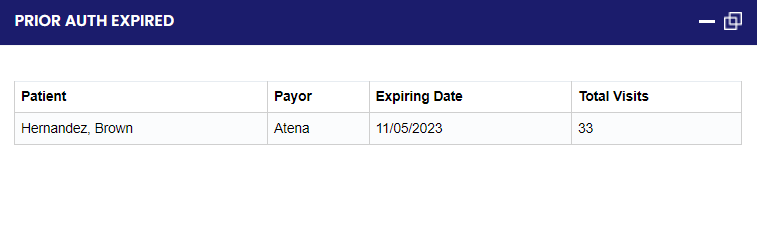
<table border="1" id="bkmrk-prior-auth-expired%3A-" style="border-collapse: collapse; width: 100%; border-width: 0px;"><colgroup><col style="width: 50%;"></col><col style="width: 50%;"></col></colgroup><tbody><tr><td style="border-width: 0px;">**Prior Auth Expired:**

The prior authorization expired section provides information about authorizations that have expired. It helps staff identify cases where authorization needs to be reestablished to continue patient care and billing processes smoothly.

</td><td style="border-width: 0px;">[![image.png](https://support.myezcare.com/uploads/images/gallery/2023-11/scaled-1680-/Nbbimage.png)](https://support.myezcare.com/uploads/images/gallery/2023-11/Nbbimage.png)

</td></tr></tbody></table>

**Overall, this comprehensive dashboard enables users to monitor and manage various aspects of the organization's activities, ensuring efficient operations, timely patient care, and compliance with necessary protocols and regulations.**