**Client >> List**
#### Referral Details Click the option  in client list before each patient name to view the referral details of the patient in the system. [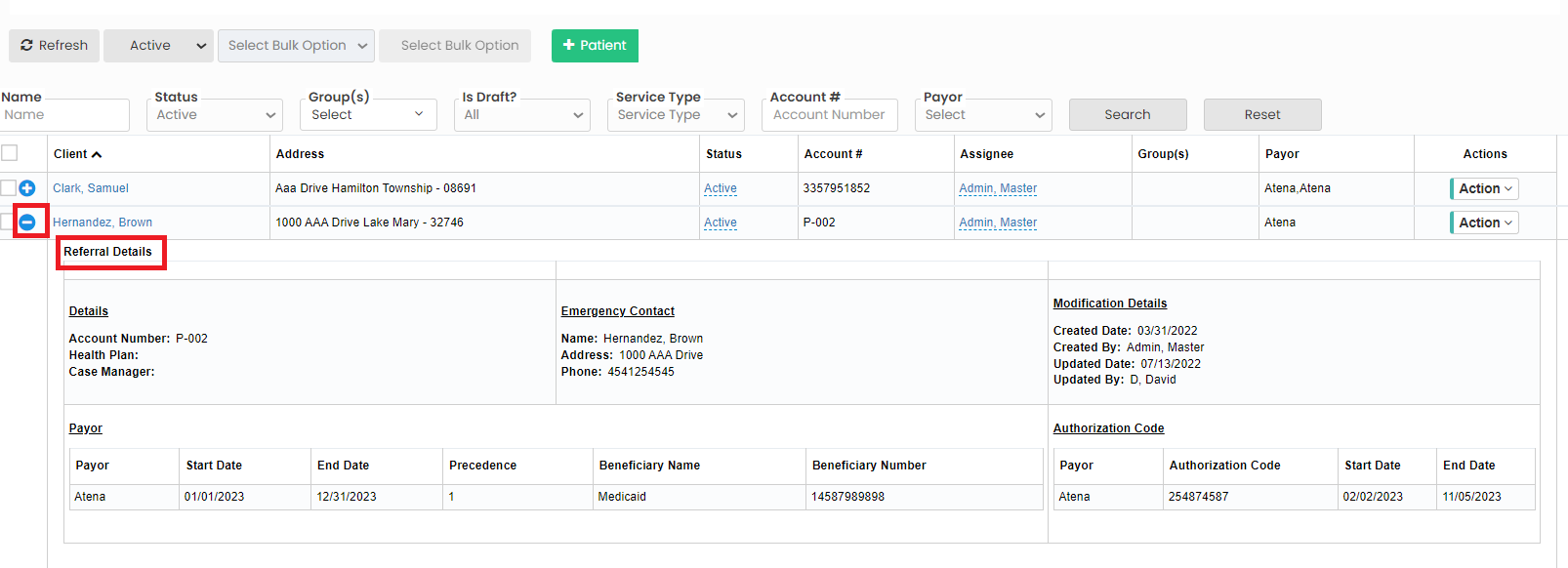](https://support.myezcare.com/uploads/images/gallery/2023-10/GPcimage.png) #### Delete Patient The Patient can be deleted from the system by using the option Disable Selected in Patient List. Select the Patient name by using the check box and click Disable Selected option. [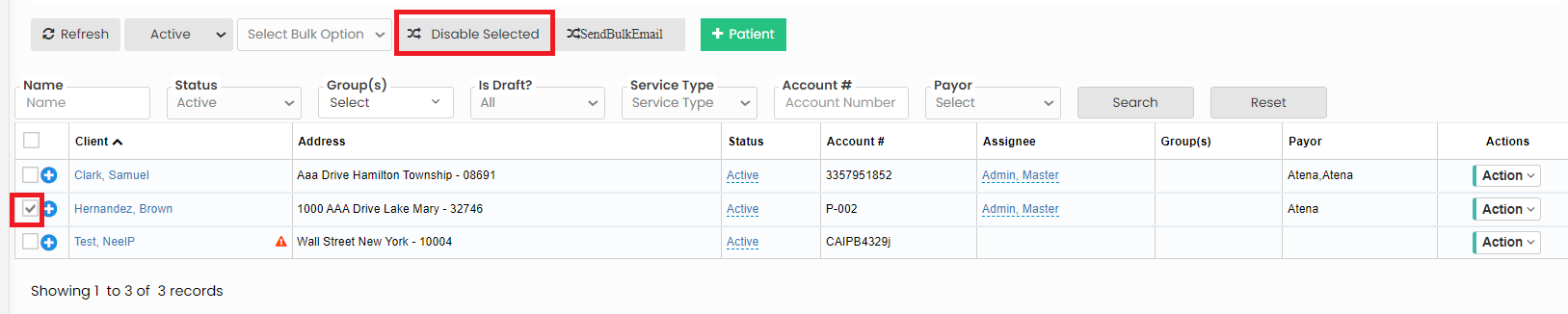](https://support.myezcare.com/uploads/images/gallery/2023-10/7KXimage.png) **Restore Deleted Patient** The Deleted Patient can be activated by using the option Enable Selected in Deleted Patient List. Select the Patient name by using the check box and Click Enable Selected option. [](https://support.myezcare.com/uploads/images/gallery/2023-10/Nw3image.png) #### Bulk update Patient Group The user can bulk update the patient group by using the option Set Bulk Group in patient list. Select the Patient name by using the check box and click Group under Select bulk option. Now select the Group code to be updated and click Set Bulk Group in patient list. Likewise we can Bulk update Assignee and Status for the patient. [](https://support.myezcare.com/uploads/images/gallery/2023-10/9QIimage.png) #### Features under Action The following features are uploaded for the patient under Action in client list. - Edit - Delete - Client Face Sheet - Incident Report - Add Notes - Vital Sign Tracking [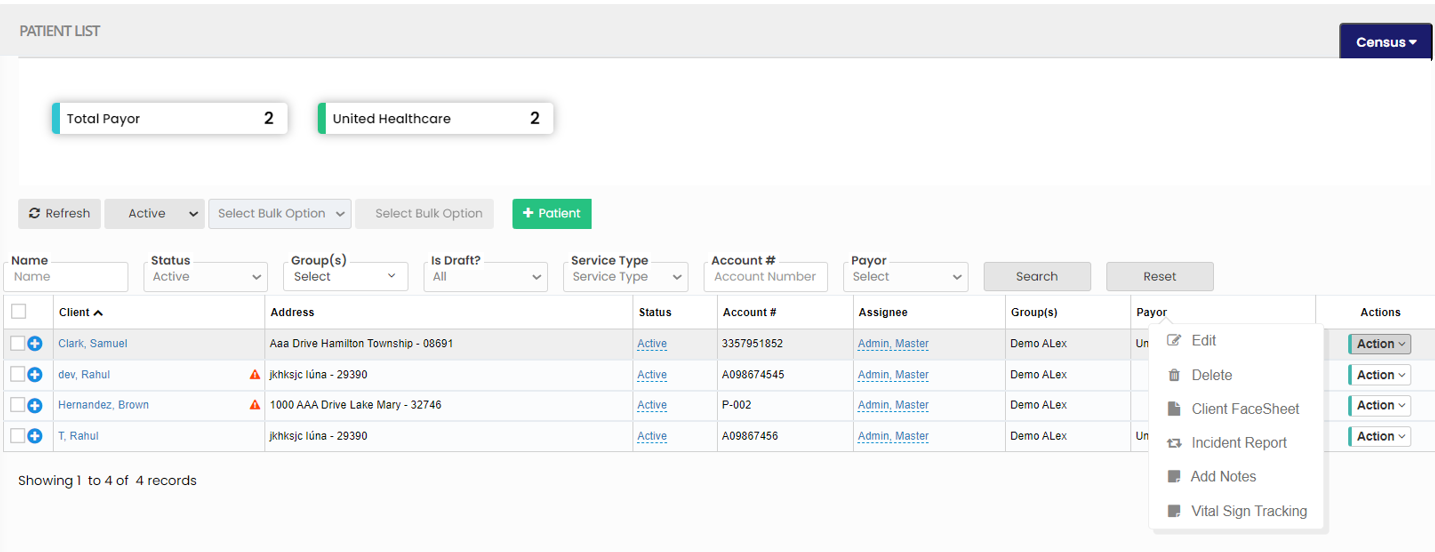](https://support.myezcare.com/uploads/images/gallery/2023-10/yF8image.png) The forms updated in Client Face sheet, Incident Report and Vital Sign Tracking are uploaded in Face Sheet folder under patient documents. #### Census The number of Payor for the list of patients can be viewed by using the option Payor under Census. [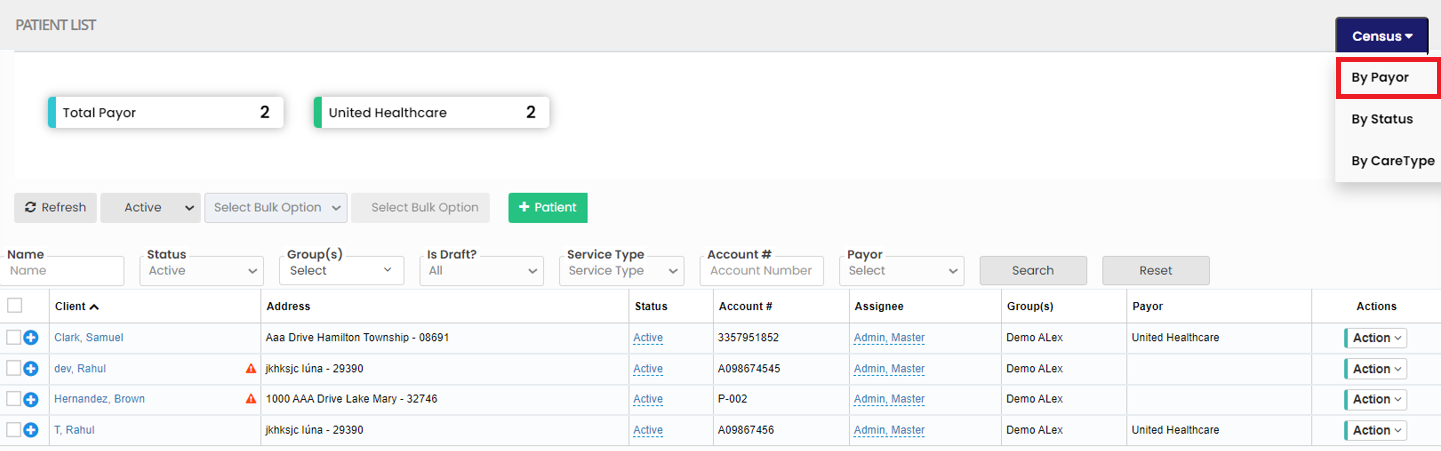](https://support.myezcare.com/uploads/images/gallery/2023-10/la3image.png) The number of patients according to their Status can be viewed by using the option By Status in Census. [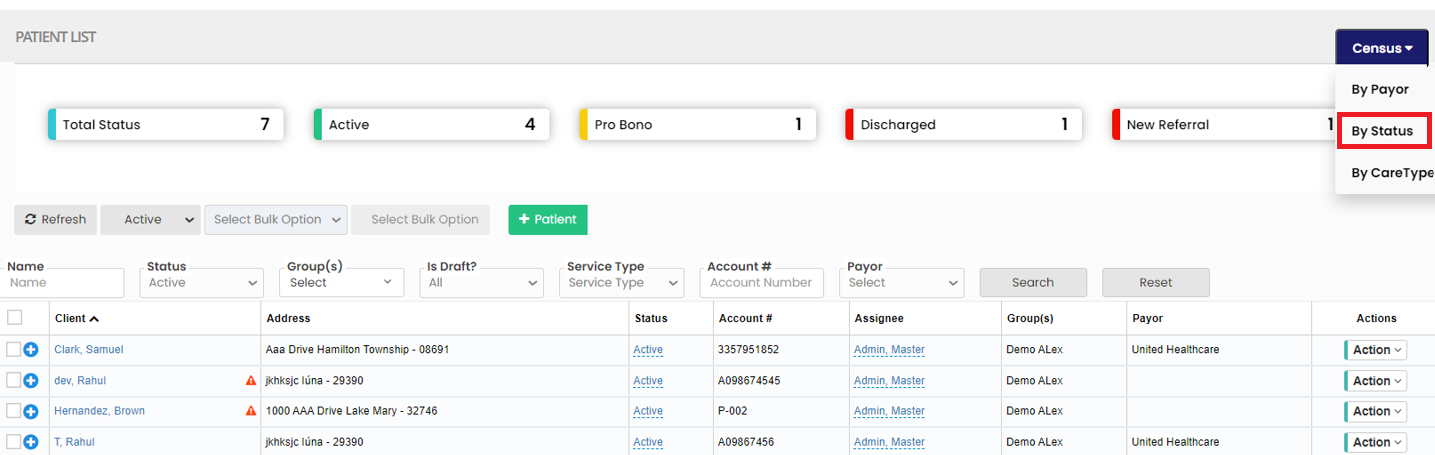](https://support.myezcare.com/uploads/images/gallery/2023-10/7FAimage.png) The user can sort the number of patient in the list according to their Care type by using the option By Care Type in Census. [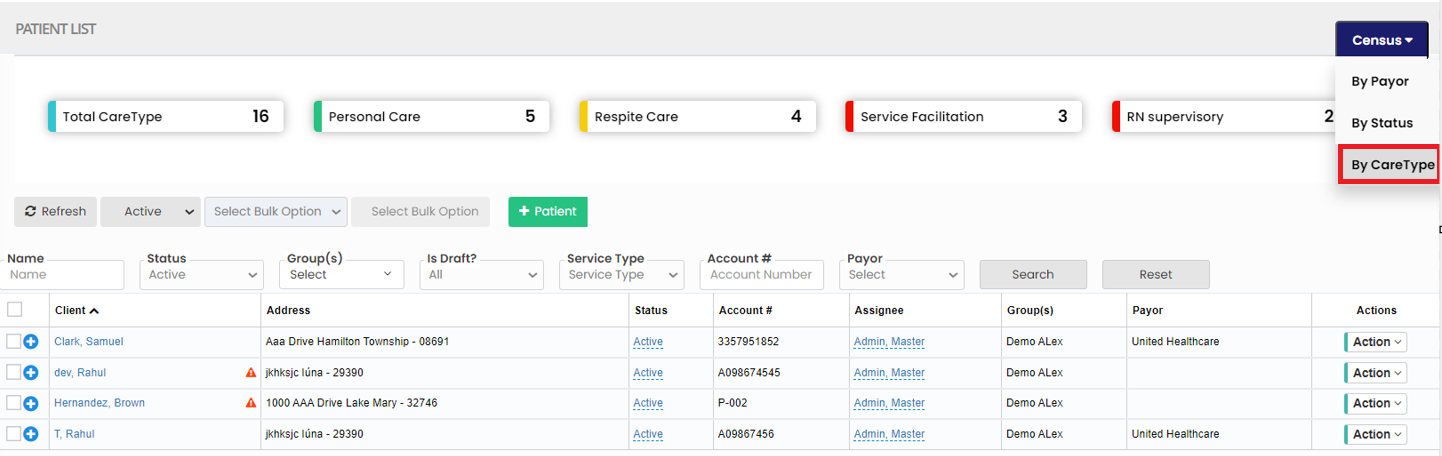](https://support.myezcare.com/uploads/images/gallery/2023-10/g22image.png) ### Bulk Upload Prior AuthClients >> Clients List
[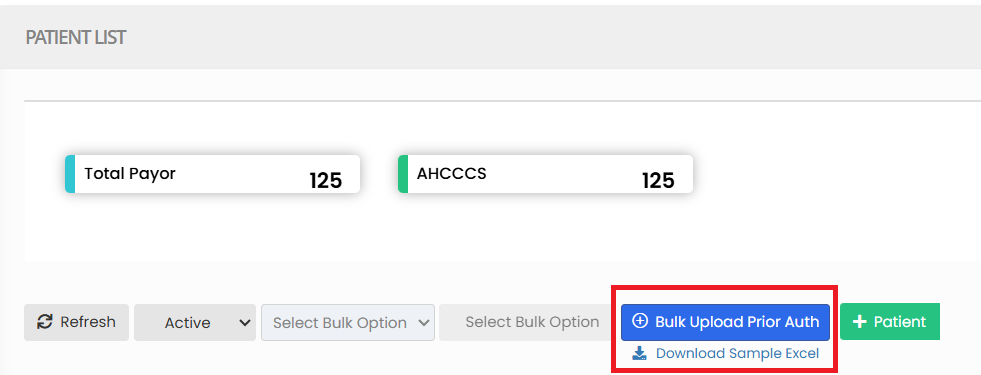](https://support.myezcare.com/uploads/images/gallery/2025-06/LZx8jgIhzxditUWS-image.png) - Download Template: The system provides a standard Excel template format with required fields (e.g., Patient ID, Authorization Number, Start Date, End Date, Units, Payer, etc.). - Fill in Data: Users populate the Excel file with the necessary authorization details. - Upload File: The completed file is uploaded into the system through the Bulk Upload interface.