**Scheduling Tab >> Calendar**
The user can view the schedules of all the patients in this calendar. [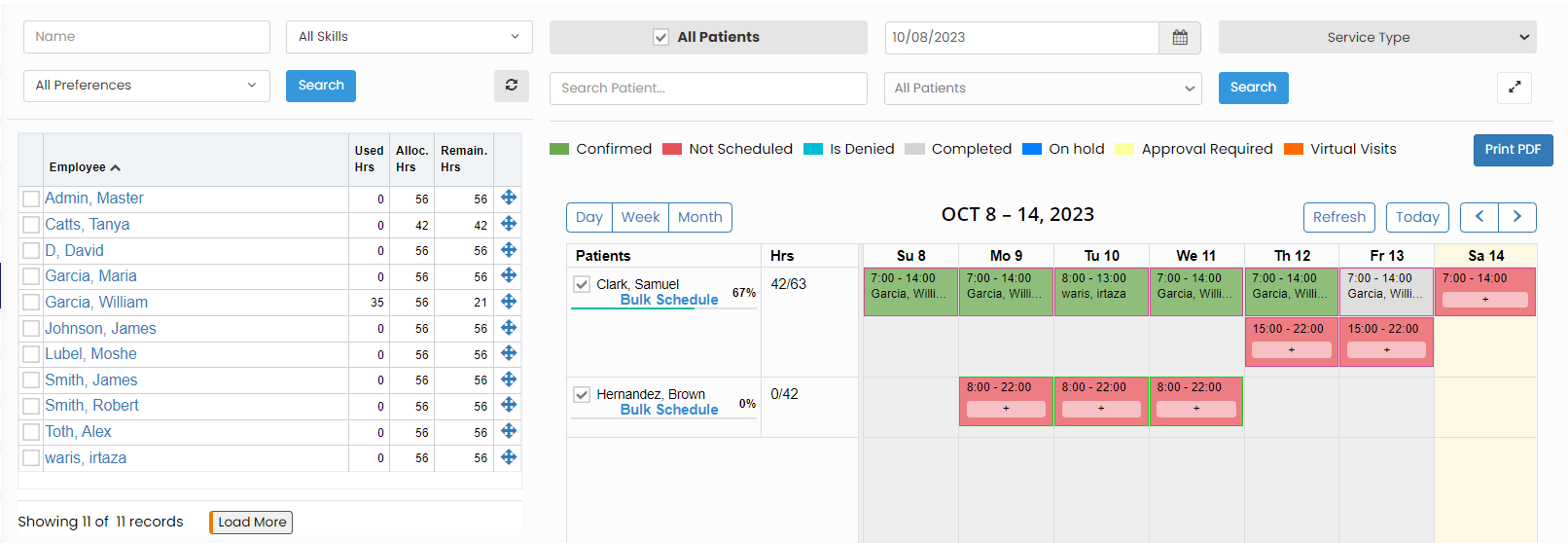](https://support.myezcare.com/uploads/images/gallery/2023-10/V5rimage.png) The color in the calendar represents whether the schedules has been completed, confirmed, not scheduled, etc., as per the color indicator above the calendar on the screen. ### Change Schedule For changing the schedules for any particular day, the user can click on the schedule time, the following screen appears, Click Change Schedule option. [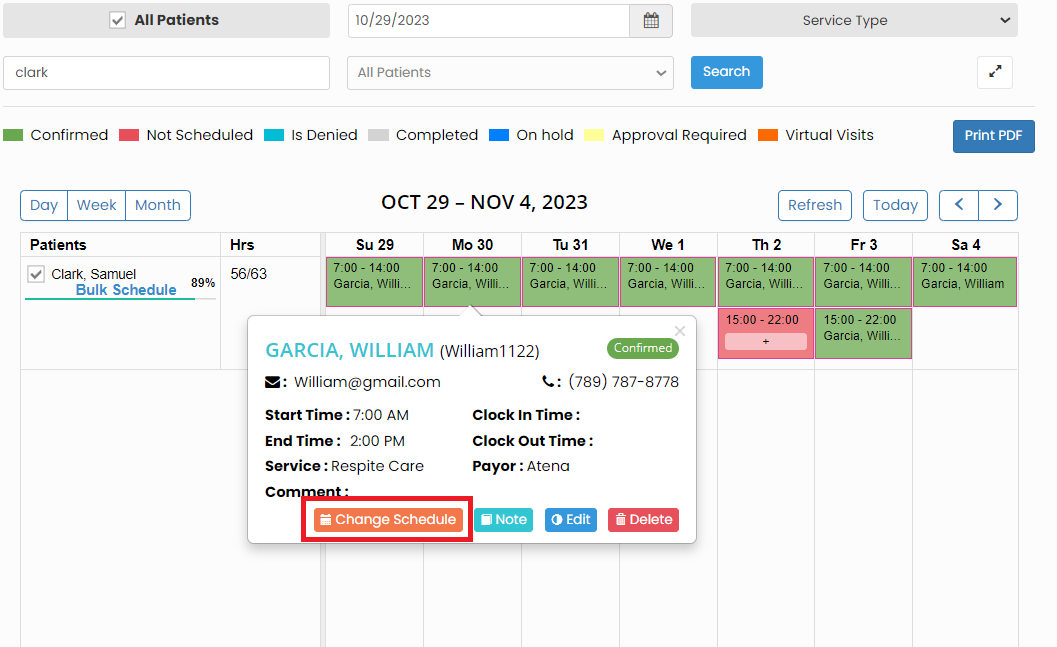](https://support.myezcare.com/uploads/images/gallery/2023-10/oQRimage.png) Now, change the Employee name and the scheduled time if required and click Save option. [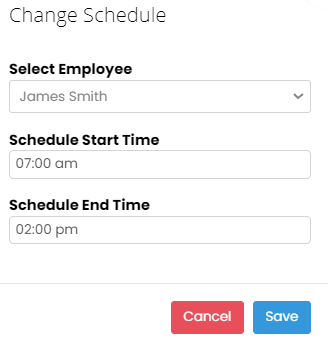](https://support.myezcare.com/uploads/images/gallery/2023-10/Oibimage.png) The selected Employee is now scheduled with the patient for the particular day and notification will be sent to the Employee. [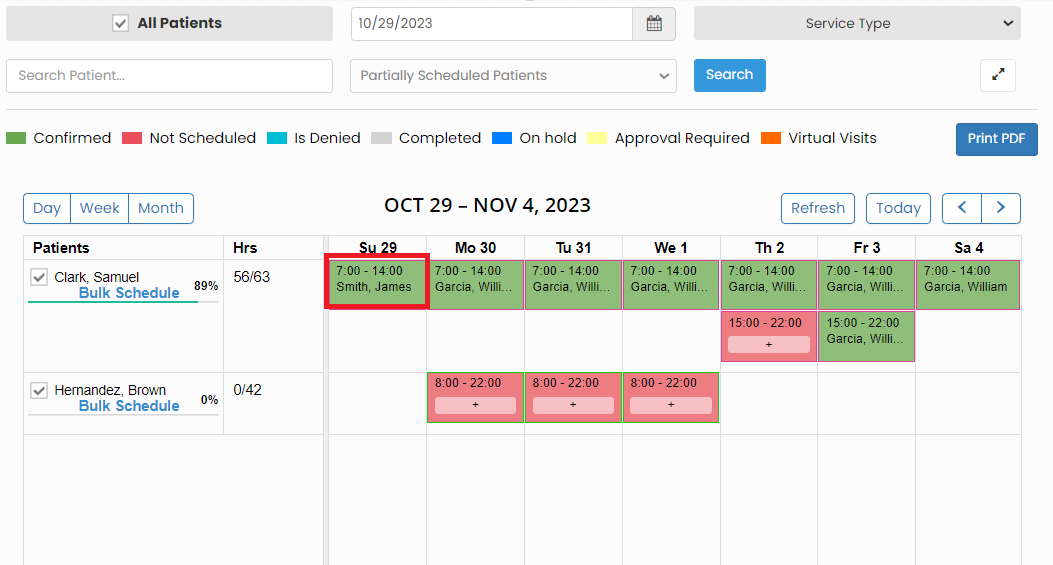](https://support.myezcare.com/uploads/images/gallery/2023-10/Z0Himage.png) ### Patient Denied Service**Scheduling Tab >> Calendar**
The patient denied service can be updated in the Scheduling calendar by simply clicking on the schedules of the day. The following screen appears, click Note option. [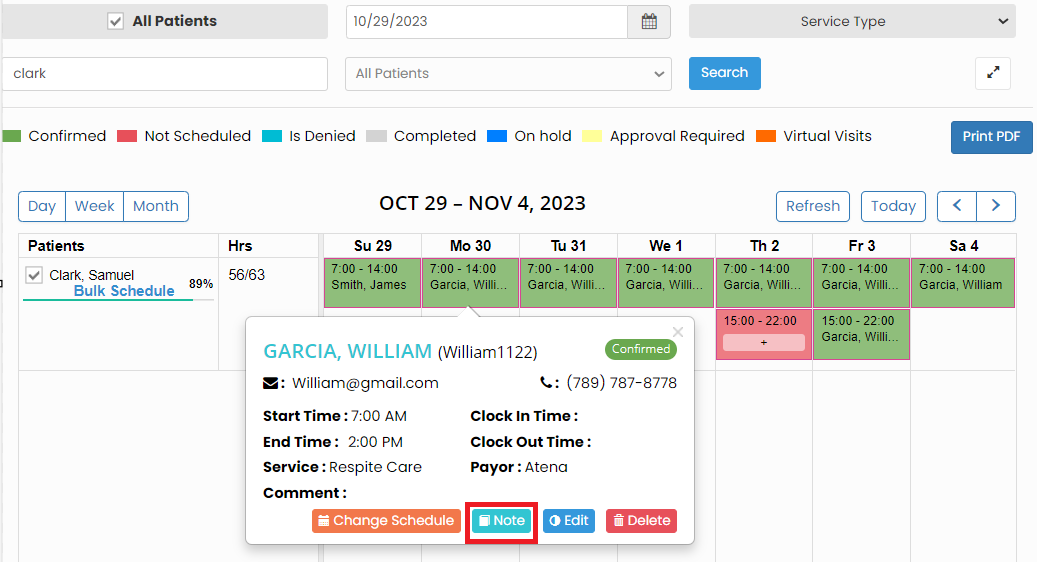](https://support.myezcare.com/uploads/images/gallery/2023-10/6j4image.png) Now, click on the check box and update the Note for the denied service and click save option. [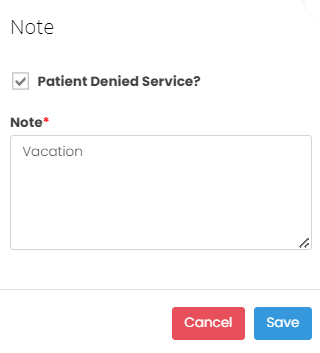](https://support.myezcare.com/uploads/images/gallery/2023-10/5TZimage.png) The patient denied service details has been updated in the Scheduling calendar and we can view the details as Do not Schedule on the particular day. [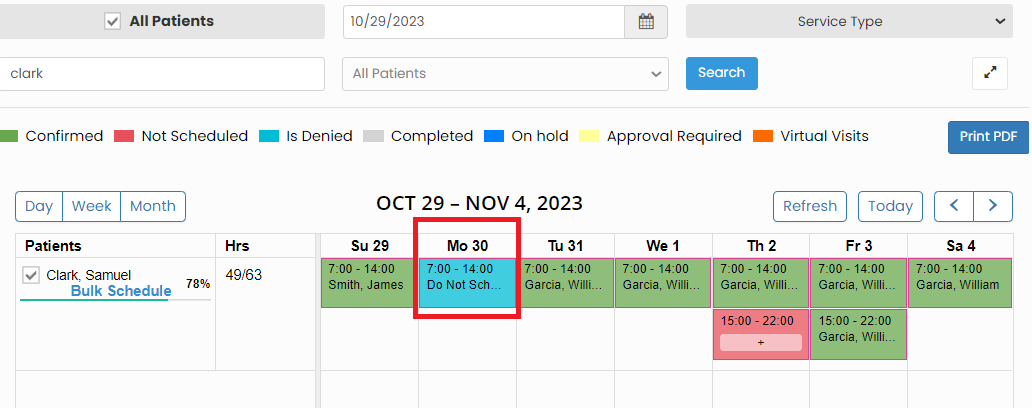](https://support.myezcare.com/uploads/images/gallery/2023-10/nDHimage.png) ### Delete Schedule**Scheduling Tab >> Calendar**
The Schedules for a particular day can be deleted in the system. Click on the schedule, the following screen appears, click Delete option. [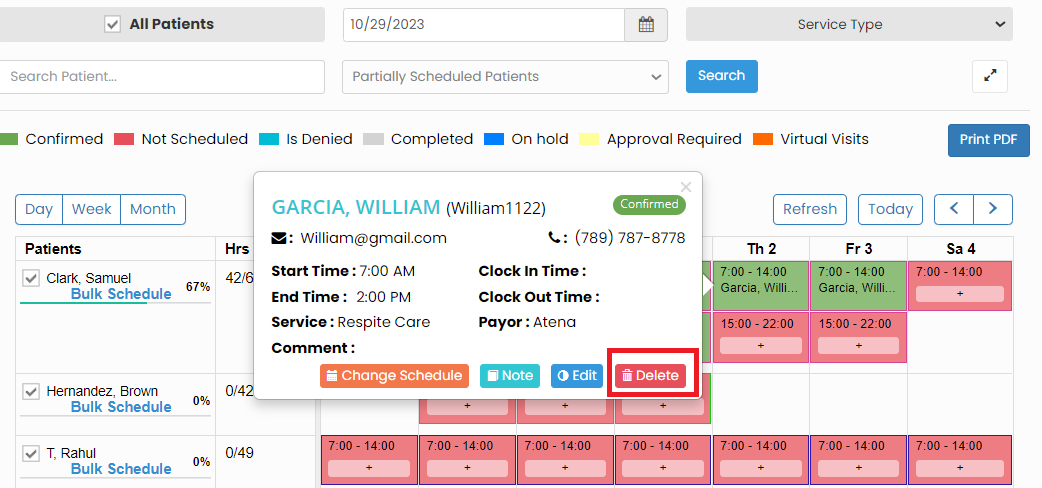](https://support.myezcare.com/uploads/images/gallery/2023-10/W7limage.png) The schedule with the employee gets deleted from the Timeslot and we can reassign the schedules to different employee in the system. [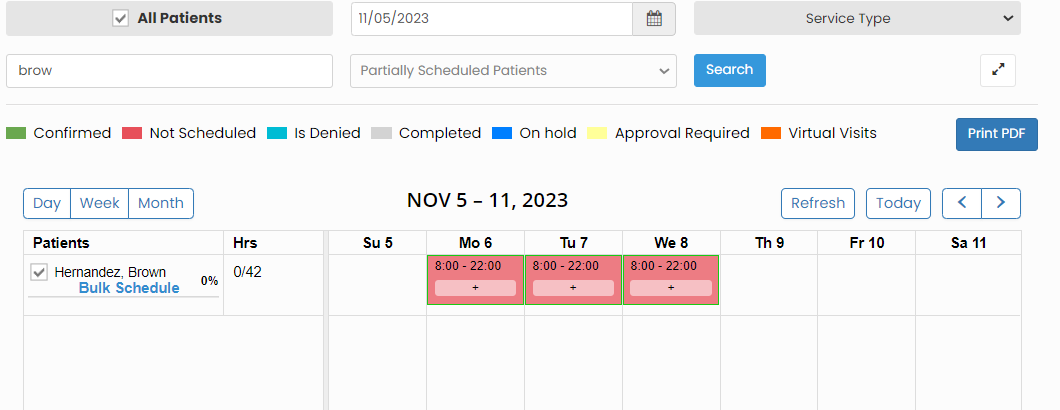](https://support.myezcare.com/uploads/images/gallery/2023-10/qpmimage.png)