Note: All Fields marked with \* are mandatory and must be filled out, otherwise the system will generate an error indicating that the required information is missing.
### User Login The User Login on the top right corner of the software contains the following features: - **My Profiles** - **Roles and Permissions** - **Organization Settings** - **Billing** - **Log Out** [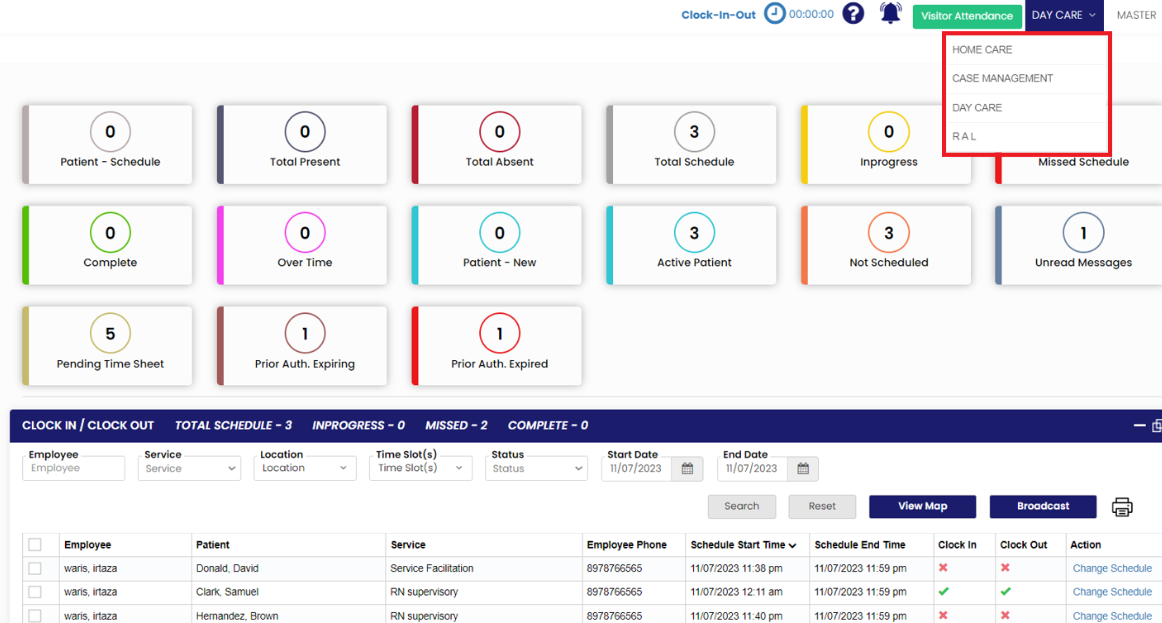](https://support.myezcare.com/uploads/images/gallery/2023-11/imnimage.png) ##### My Profiles The user can update the Profile information under My Profiles option. Update the required fields, upload the Profile image and click Save option. [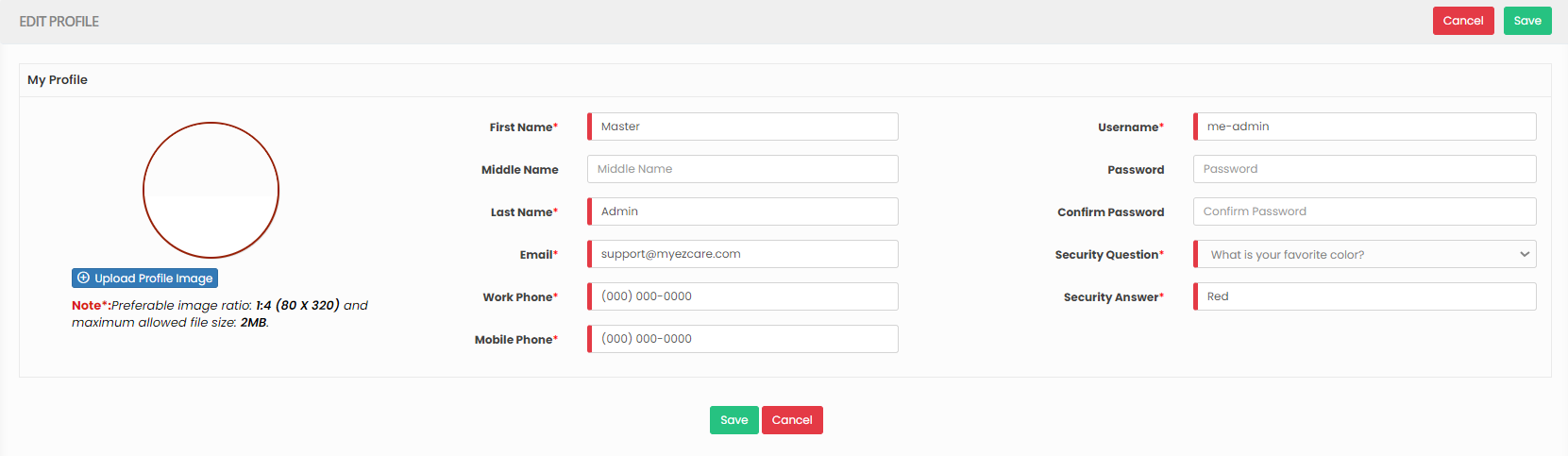](https://support.myezcare.com/uploads/images/gallery/2023-10/IQhimage.png) ##### Roles & Permissions The user can give permissions to the respective Role of the Employee. Select and Role and choose the permission to be given for the Role. - **Mobile App Permissions** - **Web Permissions** - **Report Permissions** [](https://support.myezcare.com/uploads/images/gallery/2023-10/98Uimage.png) ##### Organization Settings The user can update the Organization information under Organization Settings. It has features like Logo Settings, Invoice Settings, Billing Settings etc. [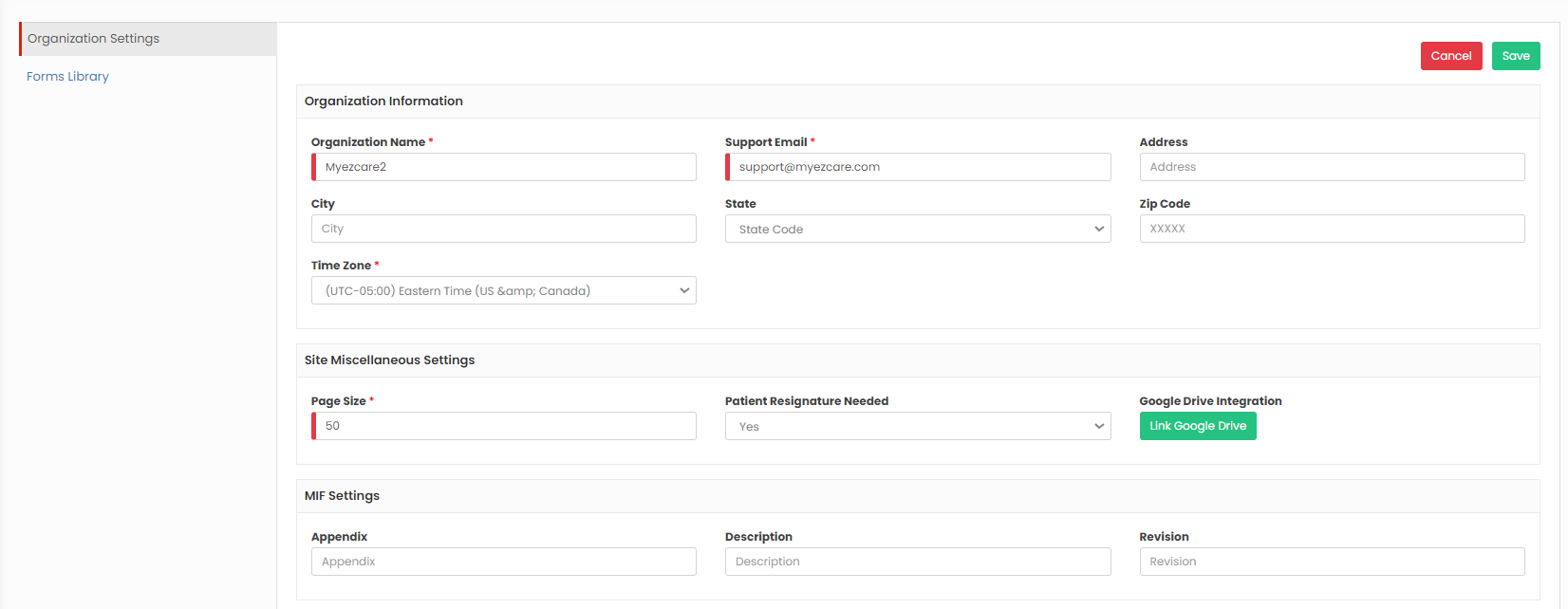](https://support.myezcare.com/uploads/images/gallery/2023-10/IwFimage.png) [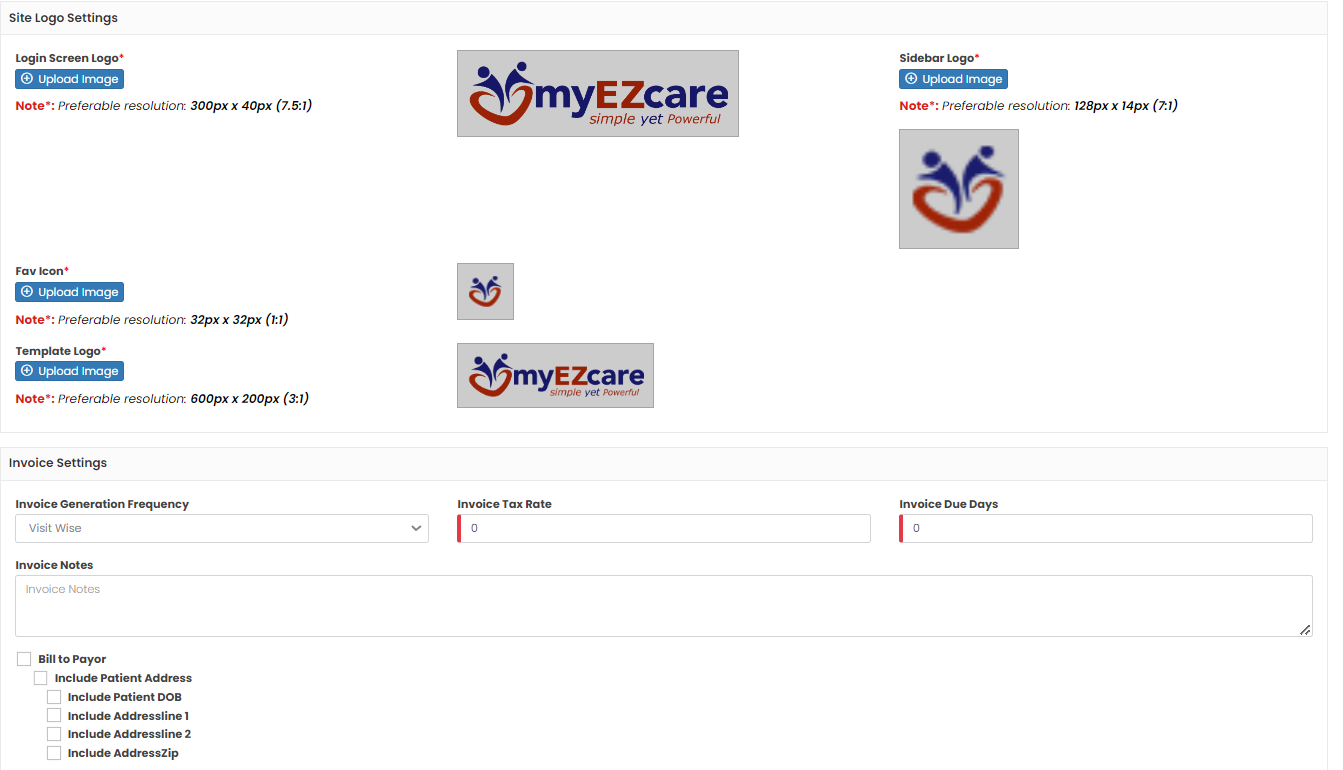](https://support.myezcare.com/uploads/images/gallery/2023-10/Y6limage.png) [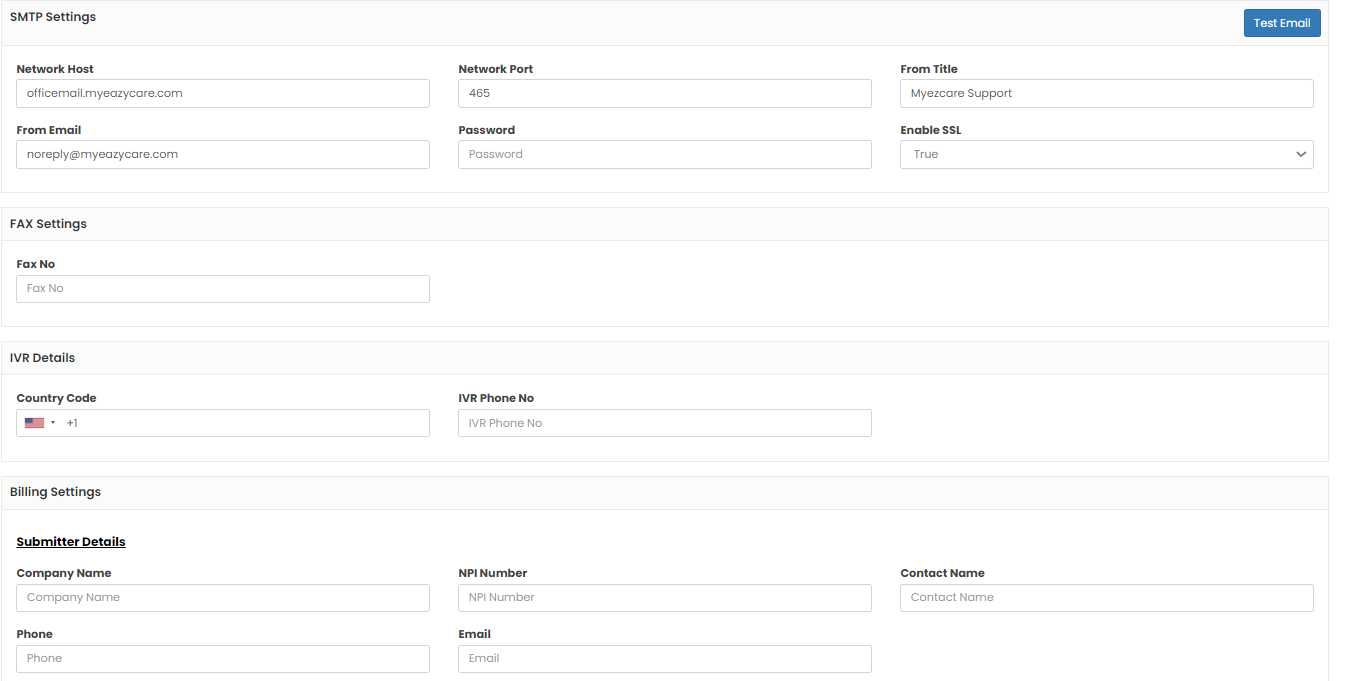](https://support.myezcare.com/uploads/images/gallery/2023-10/A8kimage.png) [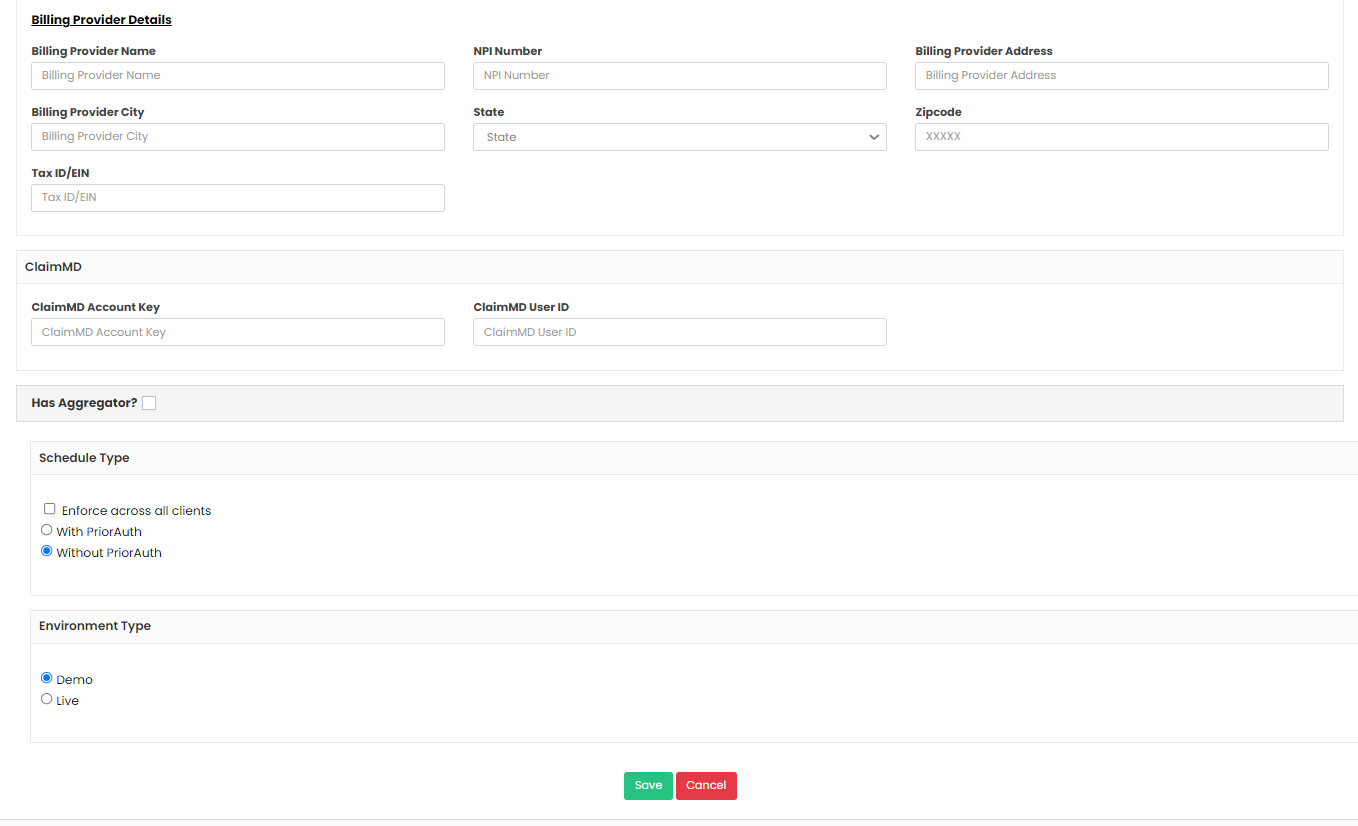](https://support.myezcare.com/uploads/images/gallery/2023-10/xuVimage.png) ##### Billing The Billing option gives us information about the list of Invoices generated in the software. [](https://support.myezcare.com/uploads/images/gallery/2023-10/qVjimage.png) ##### Log Out By clicking the "Log Out " button, the user can prevent unauthorized access to the account, reducing the data breeches and maintaining online privacy. [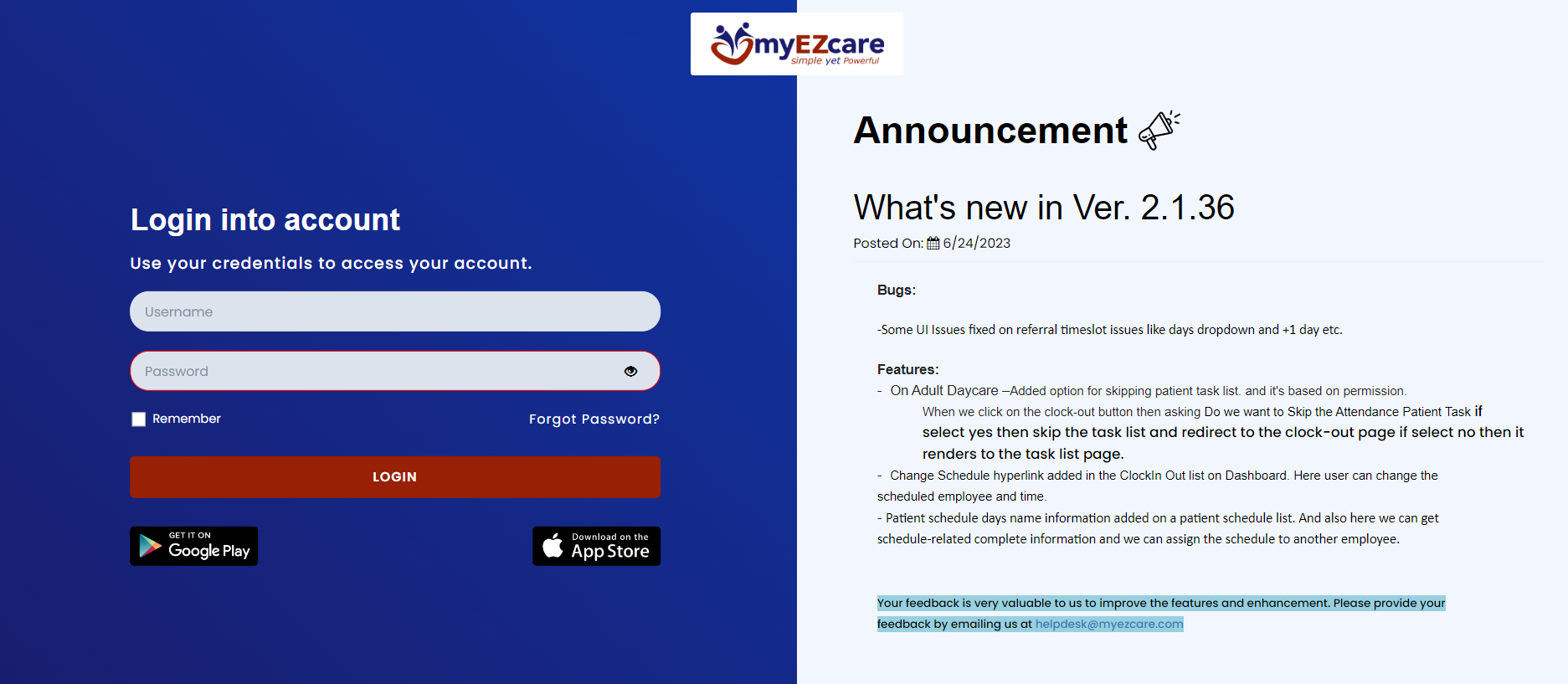](https://support.myezcare.com/uploads/images/gallery/2023-10/IoOimage.png) ##### Hide Features The four line in the Dashboard is used to hide the Feature names in the Dashboard screen. [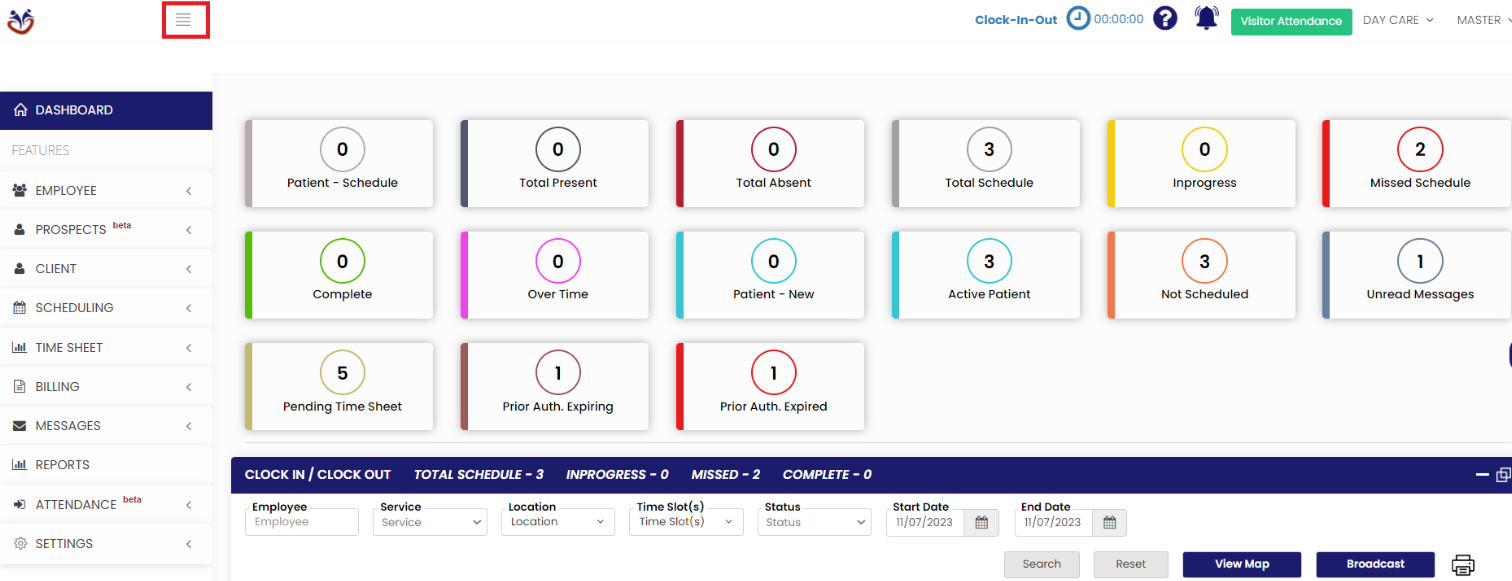](https://support.myezcare.com/uploads/images/gallery/2023-11/bPEimage.png) Now, the Features name is not visible in the Dashboard screen and we can work in the large screen. [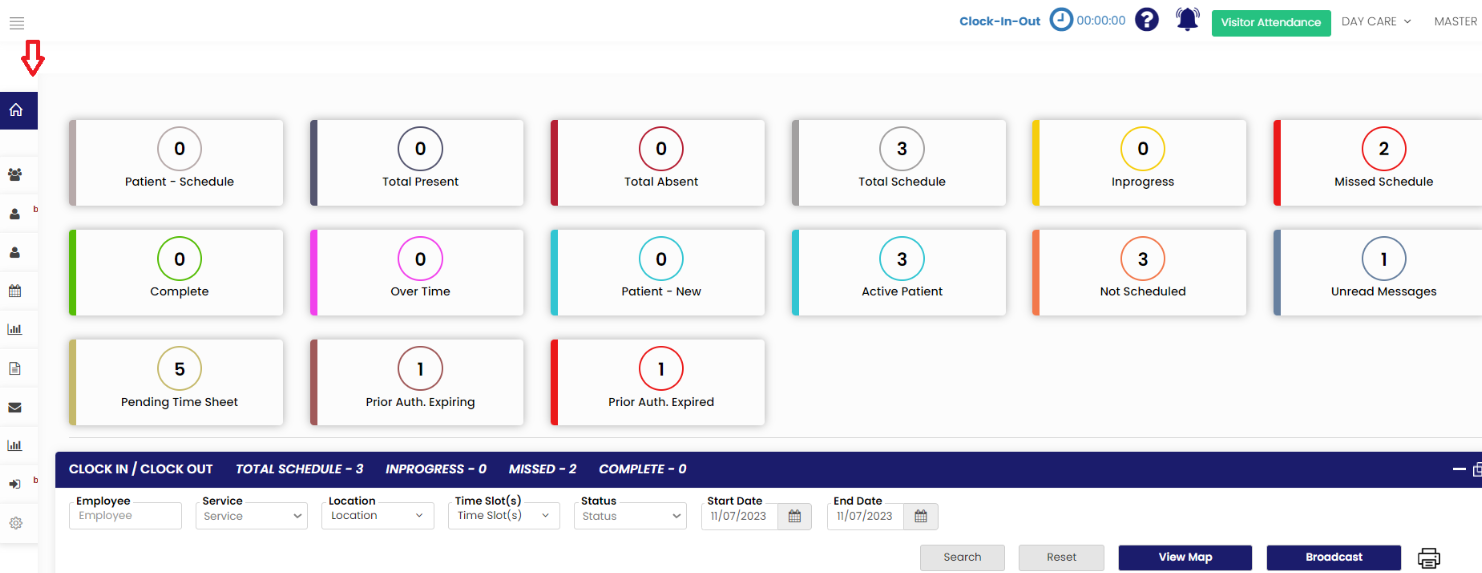](https://support.myezcare.com/uploads/images/gallery/2023-11/rjGimage.png) ##### Notification The Notification Bell option represents to Notify messages in the system. [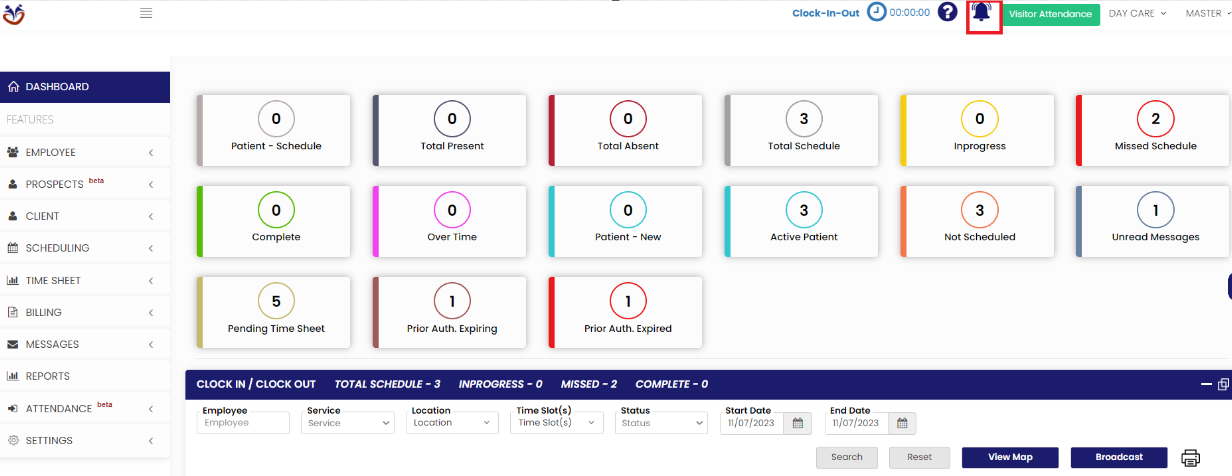](https://support.myezcare.com/uploads/images/gallery/2023-11/eoYimage.png) ##### Visitor Attendance The Visitor Attendance check-in and check-out Log can be maintained in the system using the function Visitor Attendance. Select the Facility and enter the Patient name and click search option. [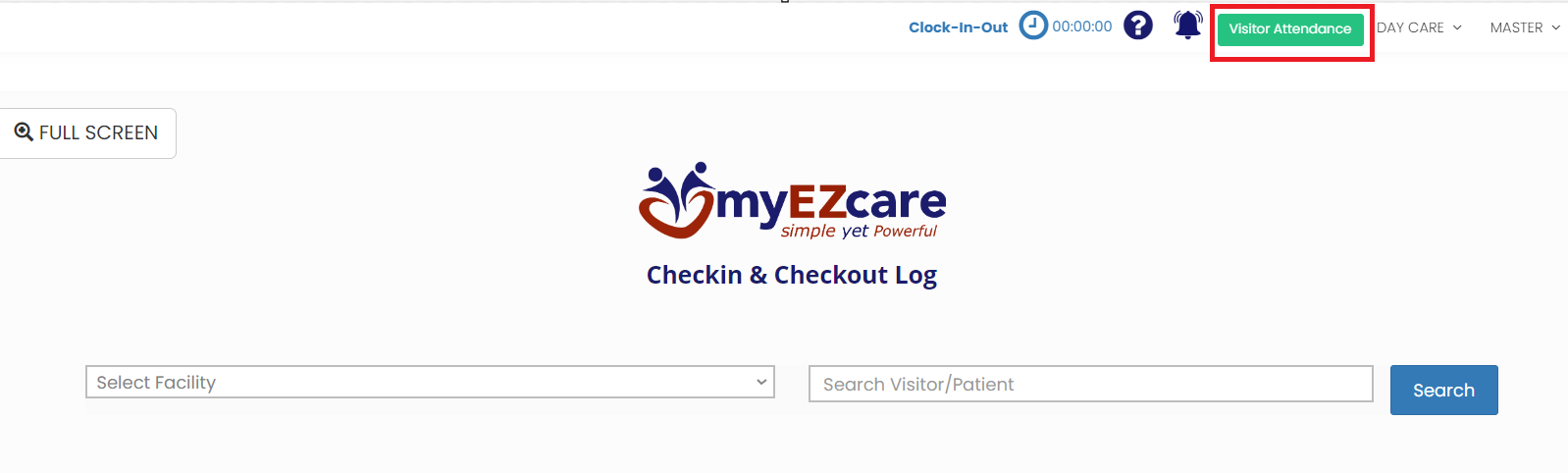](https://support.myezcare.com/uploads/images/gallery/2023-11/9T5image.png) ##### Care Type The user can choose the type of care by using the dropdown option on the top right corner in the software. [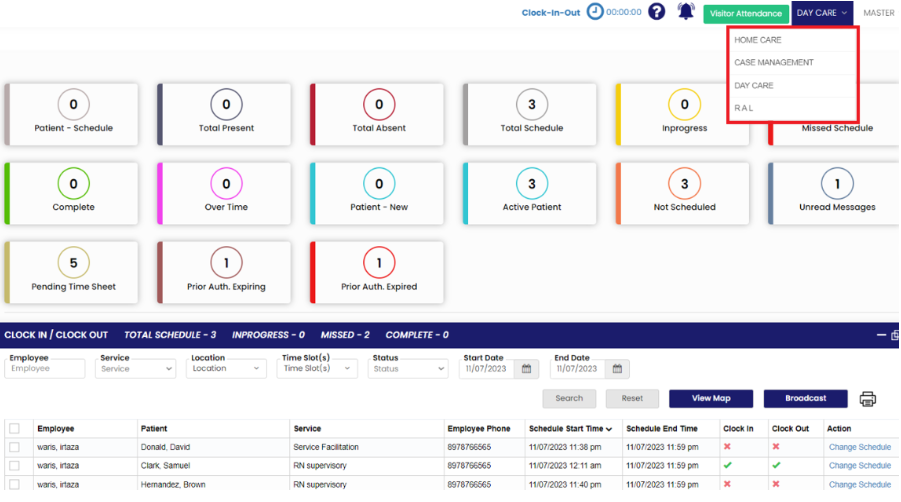](https://support.myezcare.com/uploads/images/gallery/2023-11/YuFimage.png)