Note: All Fields marked with **\*** are mandatory and must be filled out, otherwise the system will generate an error indicating that the required information is missing.
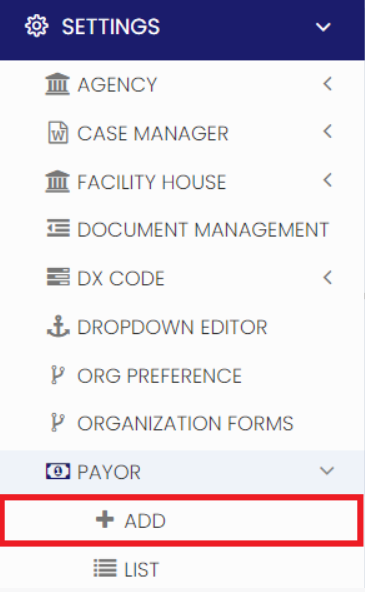
### Adding Payor Details**Settings >> Payor >> +Add option**
[](https://support.myezcare.com/uploads/images/gallery/2023-10/JiCimage.png) The user can update the required information in Payer Details and Click Save option. [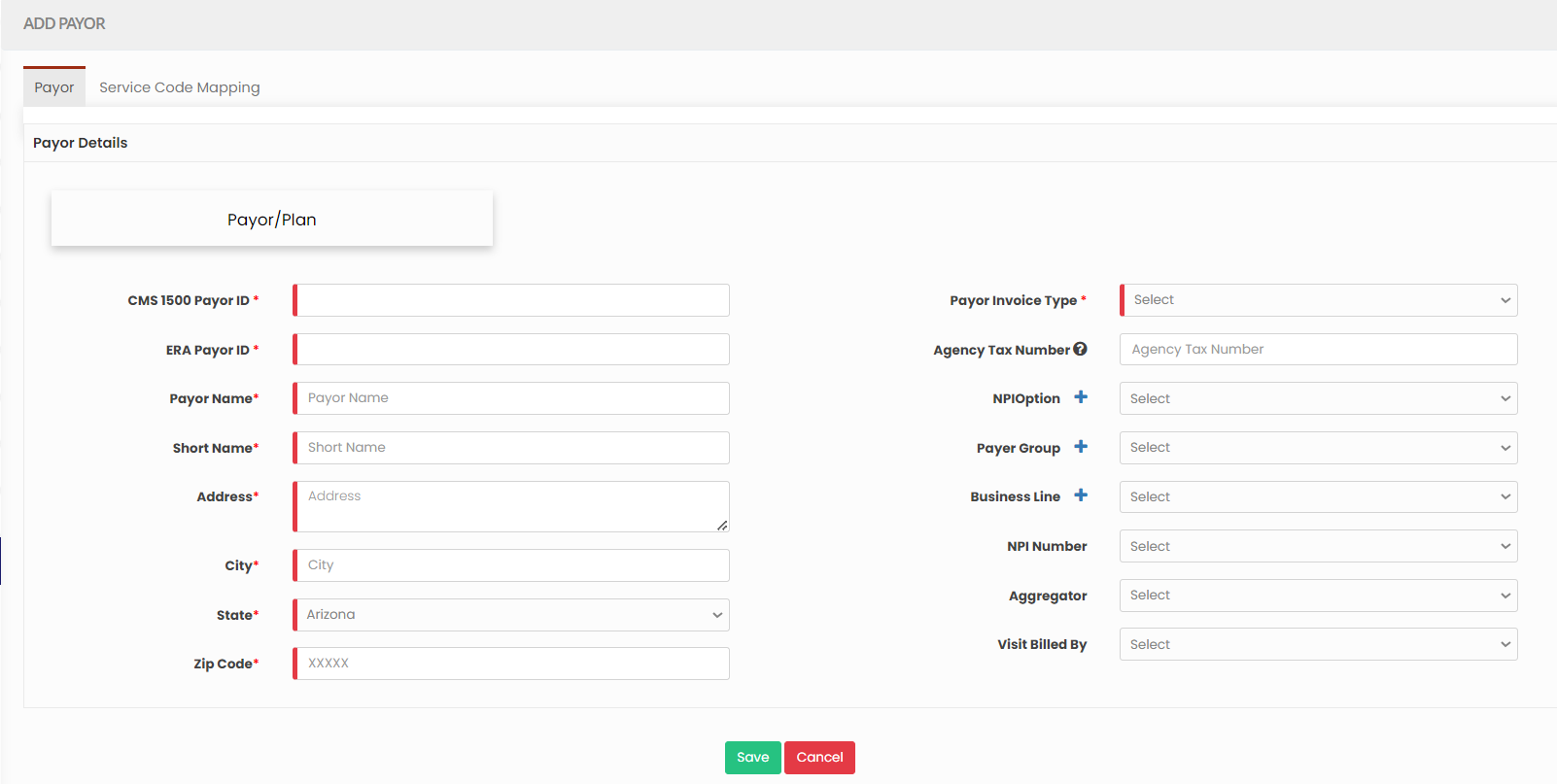](https://support.myezcare.com/uploads/images/gallery/2023-10/T6Mimage.png) ### Editing Payor Details**Settings >> Payor >> List**
Select the Payor from the List using the Edit option. [](https://support.myezcare.com/uploads/images/gallery/2023-10/iXgimage.png) Now, edit the required information in Payor Details and Click Update. [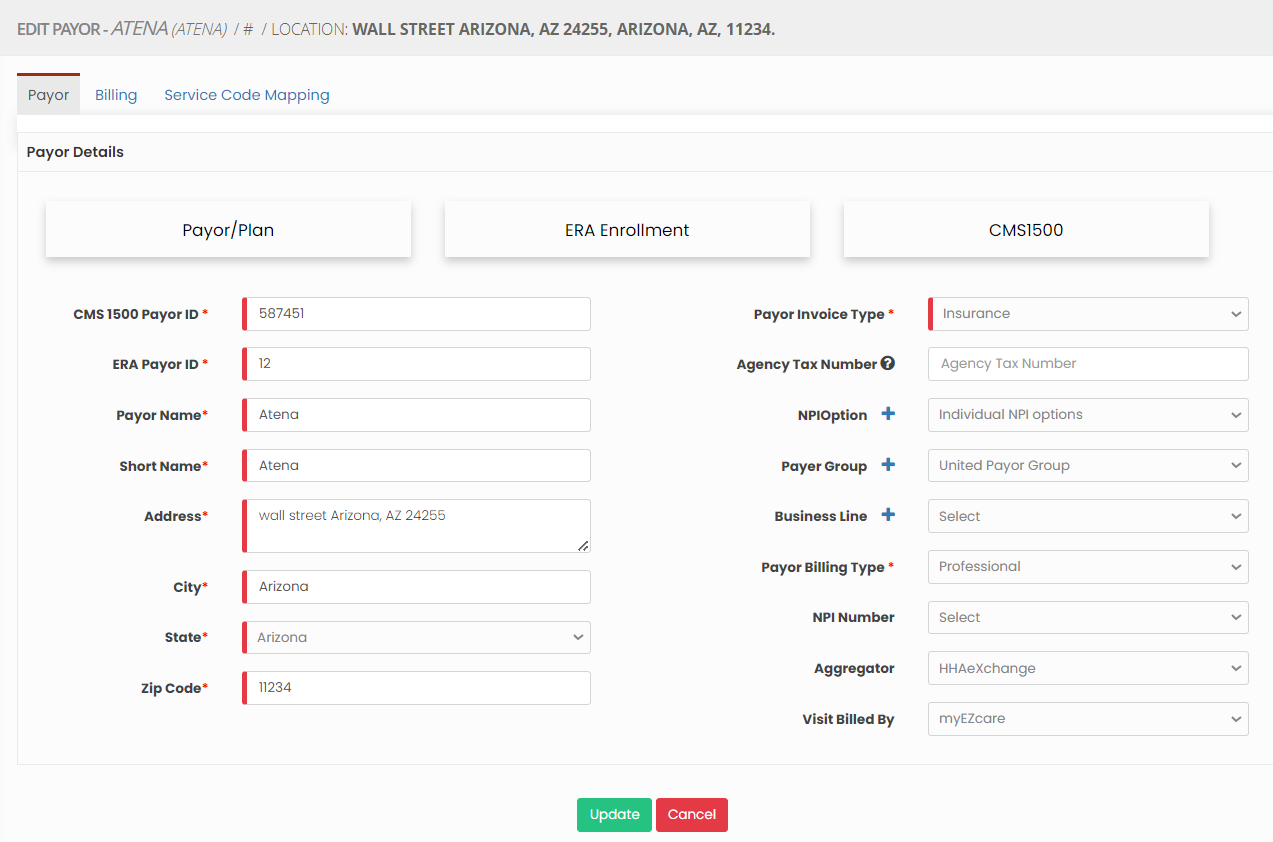](https://support.myezcare.com/uploads/images/gallery/2023-10/3DPimage.png) **Service Code Mapping** The Service Code Mapping can be done for the payor added in the system. Enter the required fields under Payor - Service code Mapping and click Save Option. [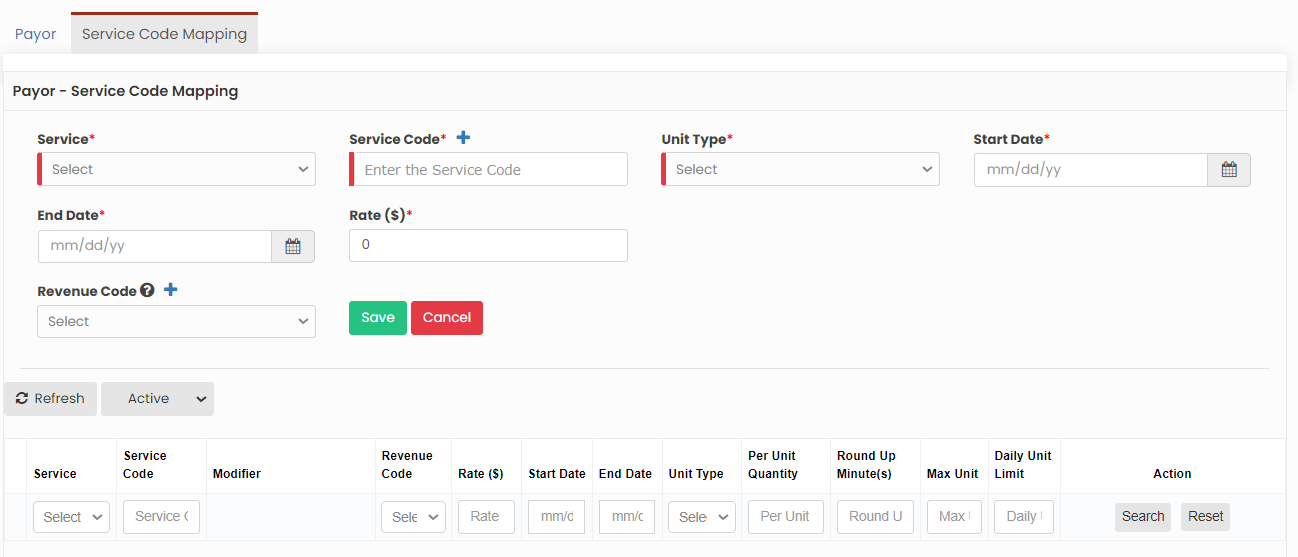](https://support.myezcare.com/uploads/images/gallery/2023-11/image.png) ### Delete Payor**Settings >> Payor >> List**
Select the payor from list using the check box and click Delete or Disable Selected option in the screen. [](https://support.myezcare.com/uploads/images/gallery/2023-10/0HQimage.png) Now, the payor gets deleted and we can view the payor under Deleted list. [](https://support.myezcare.com/uploads/images/gallery/2023-10/CFzimage.png) The user can also Restore the deleted payor by using the option Active on the right side of the screen. [](https://support.myezcare.com/uploads/images/gallery/2023-10/ddeimage.png)