**Employee Tab >> Personal Time Off (PTO)**
[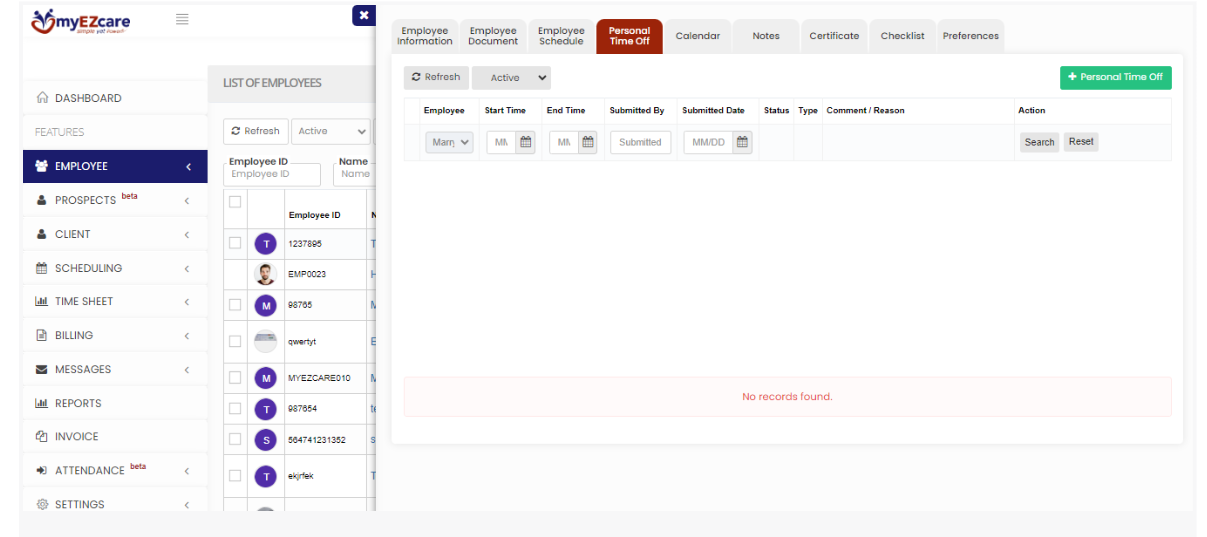](https://support.myezcare.com/uploads/images/gallery/2023-10/N4himage.png) Select the + Personal Time Off option. The following screen appears, update the required information of the Employee Time Off and Click Save. [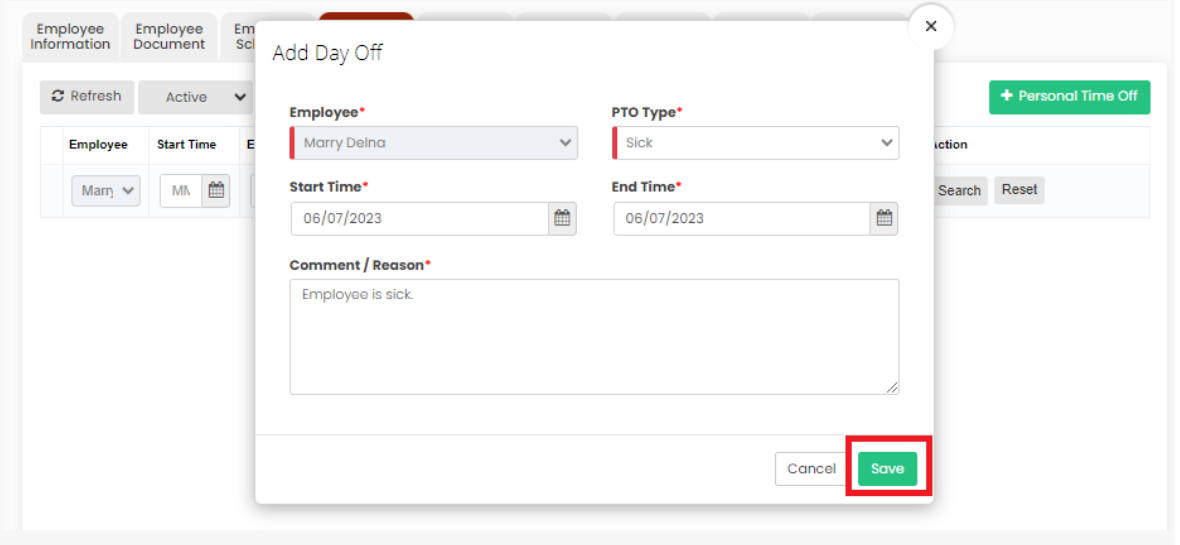](https://support.myezcare.com/uploads/images/gallery/2023-10/bhIimage.png) ### Employee Calendar The user can view the Employee calendar for their scheduled visits. The Employee calendar has the details of the client name, Care type and the scheduled time.**Employee Tab >> Calendar**
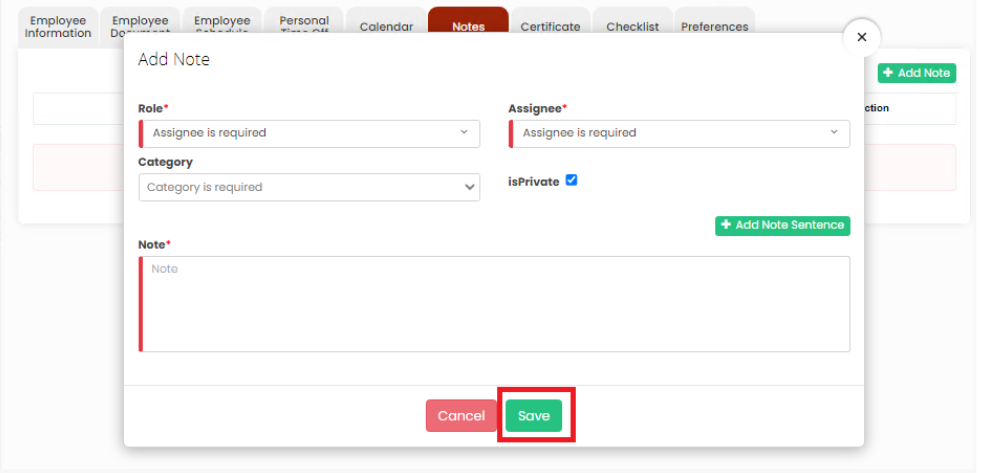
[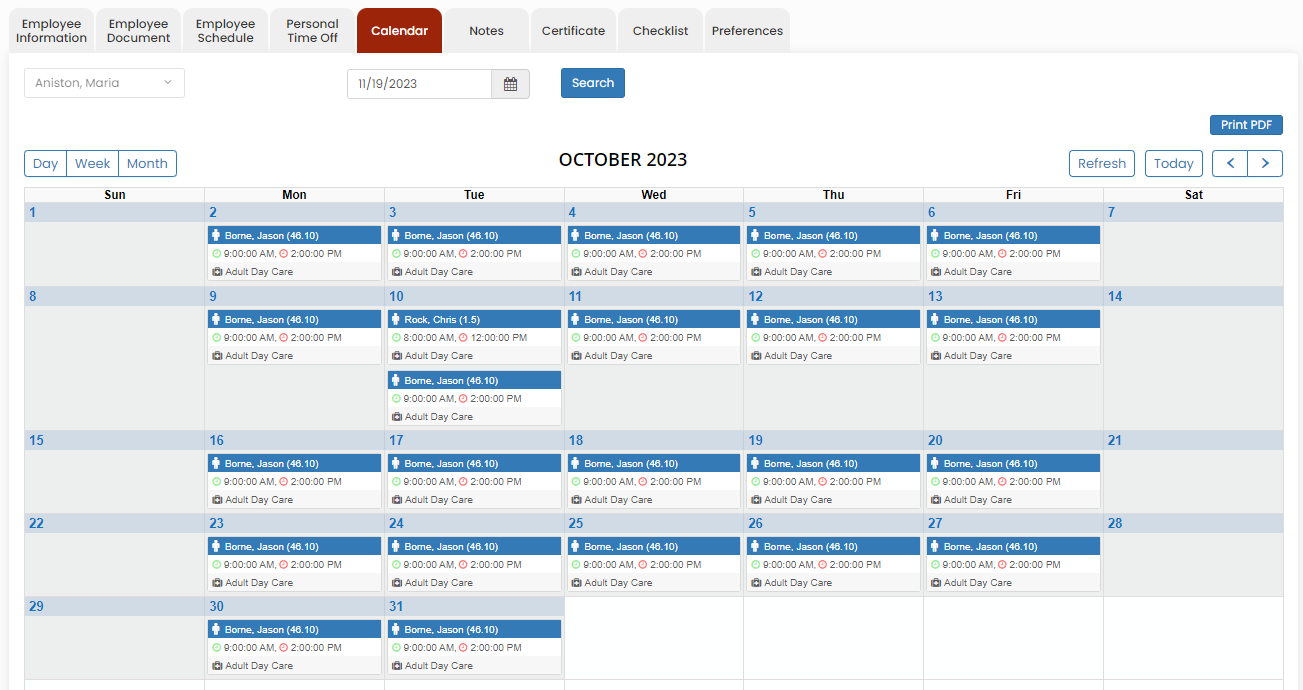](https://support.myezcare.com/uploads/images/gallery/2023-11/0AJimage.png) ### Employee Notes The Notes Tab is used to add notes of the employee in the system. Click the option +Add Note. Select the required fields and update the notes of the employee and Click Save option.**Employee Tab >> List >> Employee Name >> Notes**
[](https://support.myezcare.com/uploads/images/gallery/2023-10/JRMimage.png)