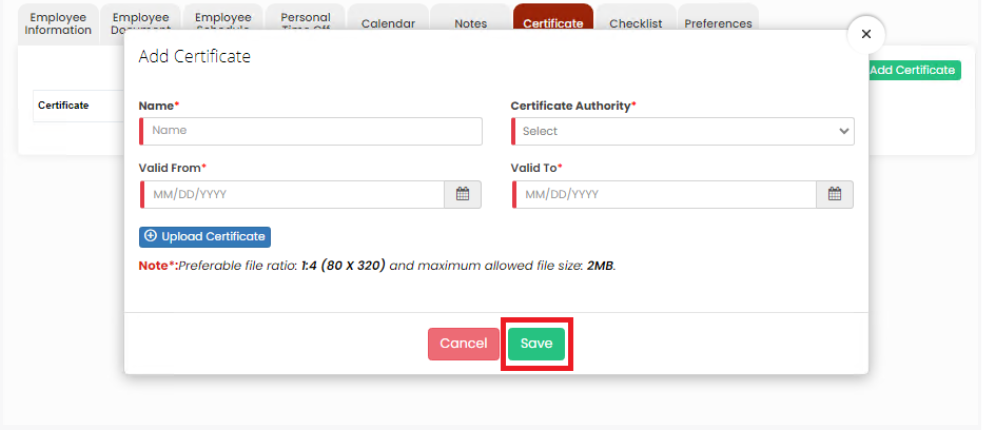
**Employee Tab >> List >> Employee Name >> Certificate**
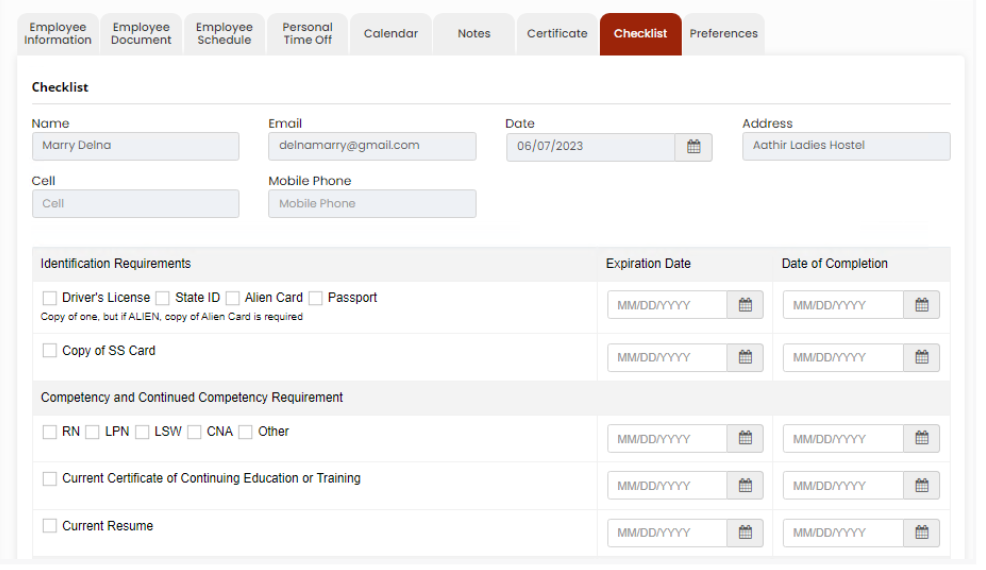
[](https://support.myezcare.com/uploads/images/gallery/2023-10/DD1image.png) ### Employee Checklist The user can check the documents in the checklist and update the Expiration date and Date of Completion in the checklist.**Employee Tab >> List >> Employee Name >> Checklist**
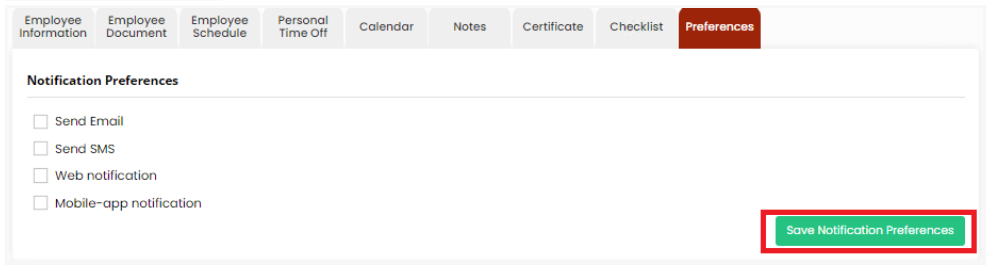
[](https://support.myezcare.com/uploads/images/gallery/2023-10/IJ1image.png) ### Employee Preferences The user can update the Employee Preferences by using the Preferences option. Check the Preferences from the list and click Save Notification Preferences option.**Employee Tab >> List >> Employee Name >> Preferences**
[](https://support.myezcare.com/uploads/images/gallery/2023-10/9Ceimage.png)