**Client >> Calendar**
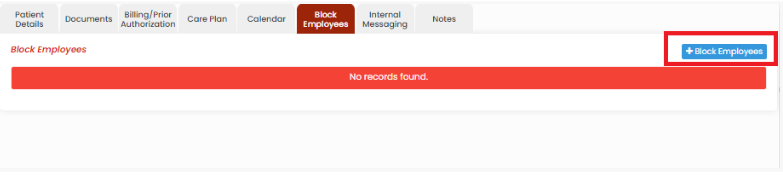
[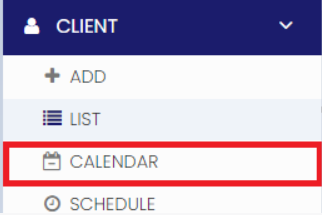](https://support.myezcare.com/uploads/images/gallery/2023-10/vojimage.png) Select the Patient name, Month and Click Search option to view the Patient Calendar for the month. [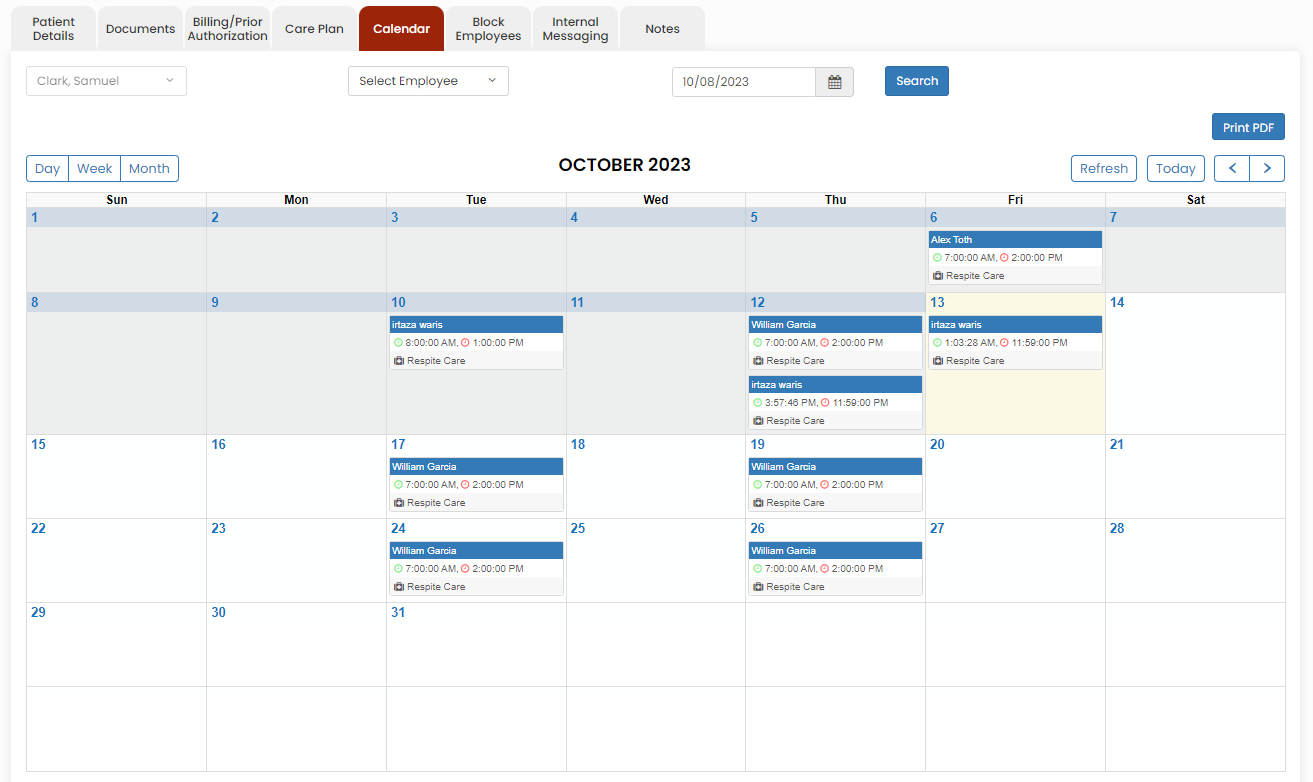](https://support.myezcare.com/uploads/images/gallery/2023-10/Ndeimage.png) ### Block employees Block Employee is a feature where the patient does not want a certain employee to visit him/her, they can be blocked using this option.**Client >> List >> Select Employee Name >> Block Employees.**
[](https://support.myezcare.com/uploads/images/gallery/2023-10/9YQimage.png) Update the Employee Name, Blocking requested by and the Blocking reason in the system. Click Save option to save the information. [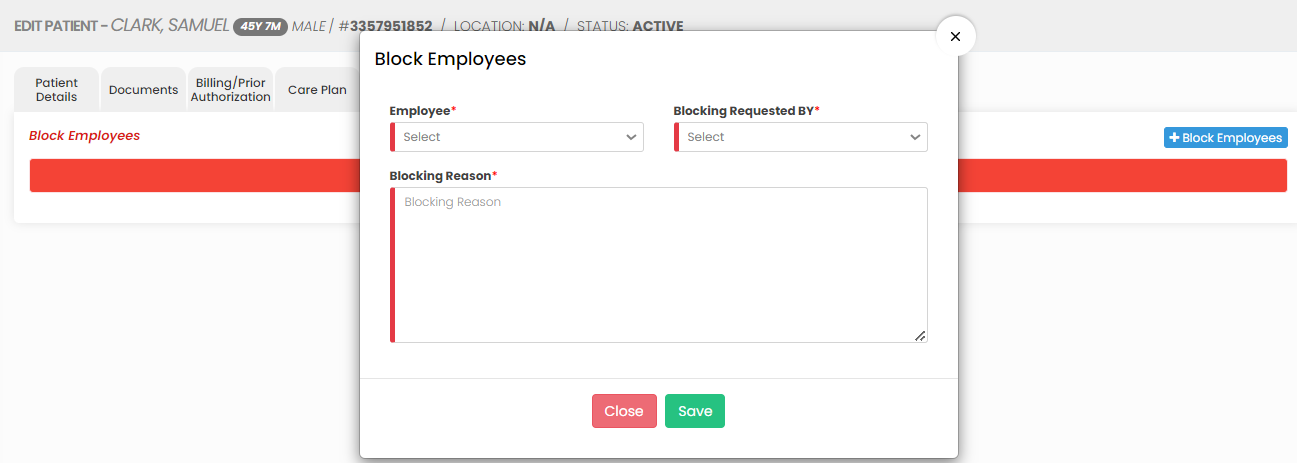](https://support.myezcare.com/uploads/images/gallery/2023-10/ccKimage.png) Click Delete option under Action to Delete the Block Employees details in the system. [](https://support.myezcare.com/uploads/images/gallery/2023-11/P2Oimage.png)